
Adding Employees & Departments
Overview
The Employee Talent Grader in Discovered allows you to easily add new hires, existing staff, or entire departments to your organization chart. You can place employees directly on the performance grid, assign them to departments, or automatically convert hired candidates into employees from job postings.
This feature ensures your team data stays organized, allowing you to track performance and core value alignment efficiently. Whether you’re adding one new employee or restructuring departments, everything can be managed directly from the Employee Talent Grader page.
How to Add Employees & Departments:
1. Access the Employee Talent Grader:
- From the top navigation, click Employees.
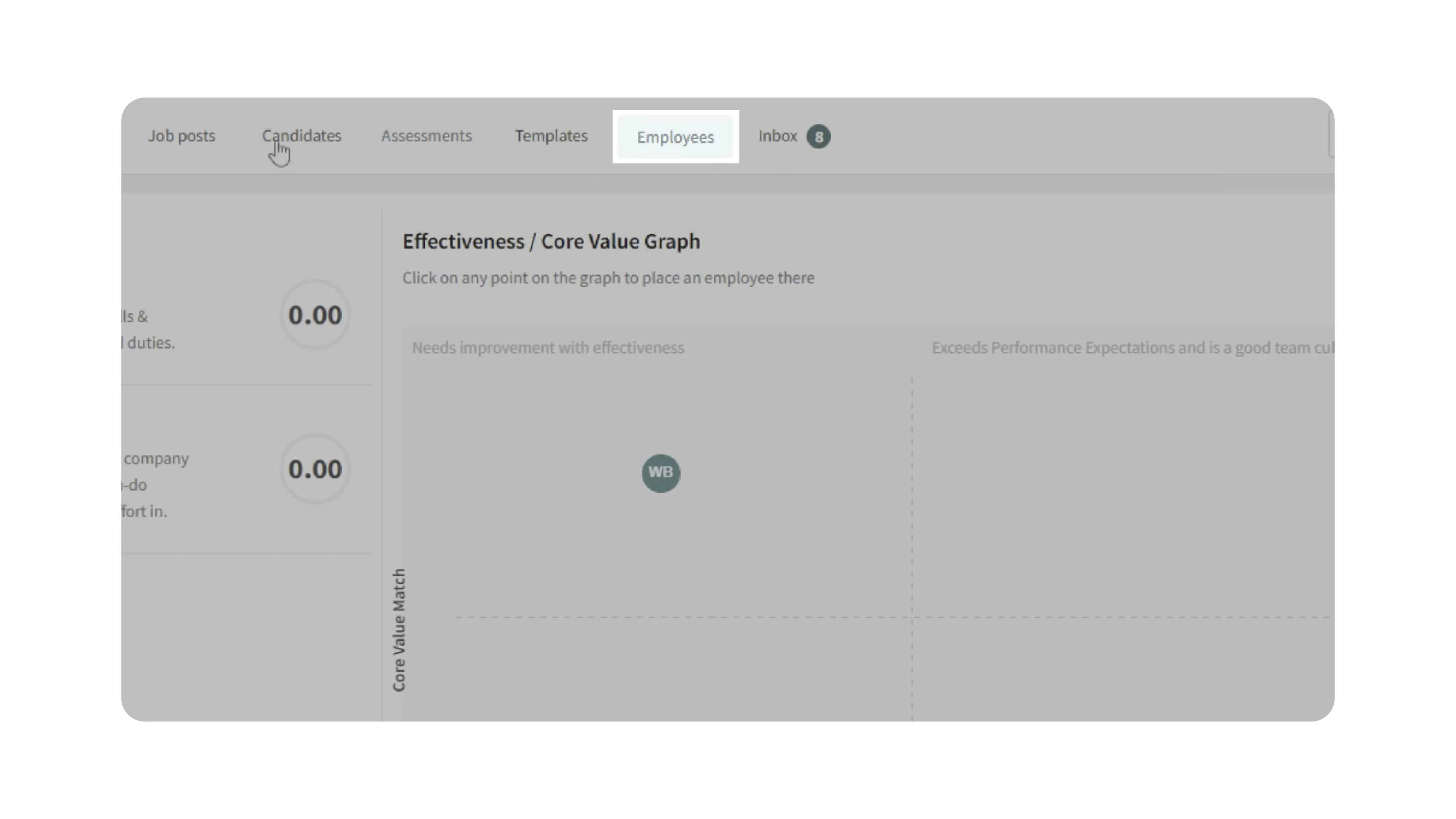
- You’ll be directed to the Employee Talent Grader page, where you can view your performance chart and department list.
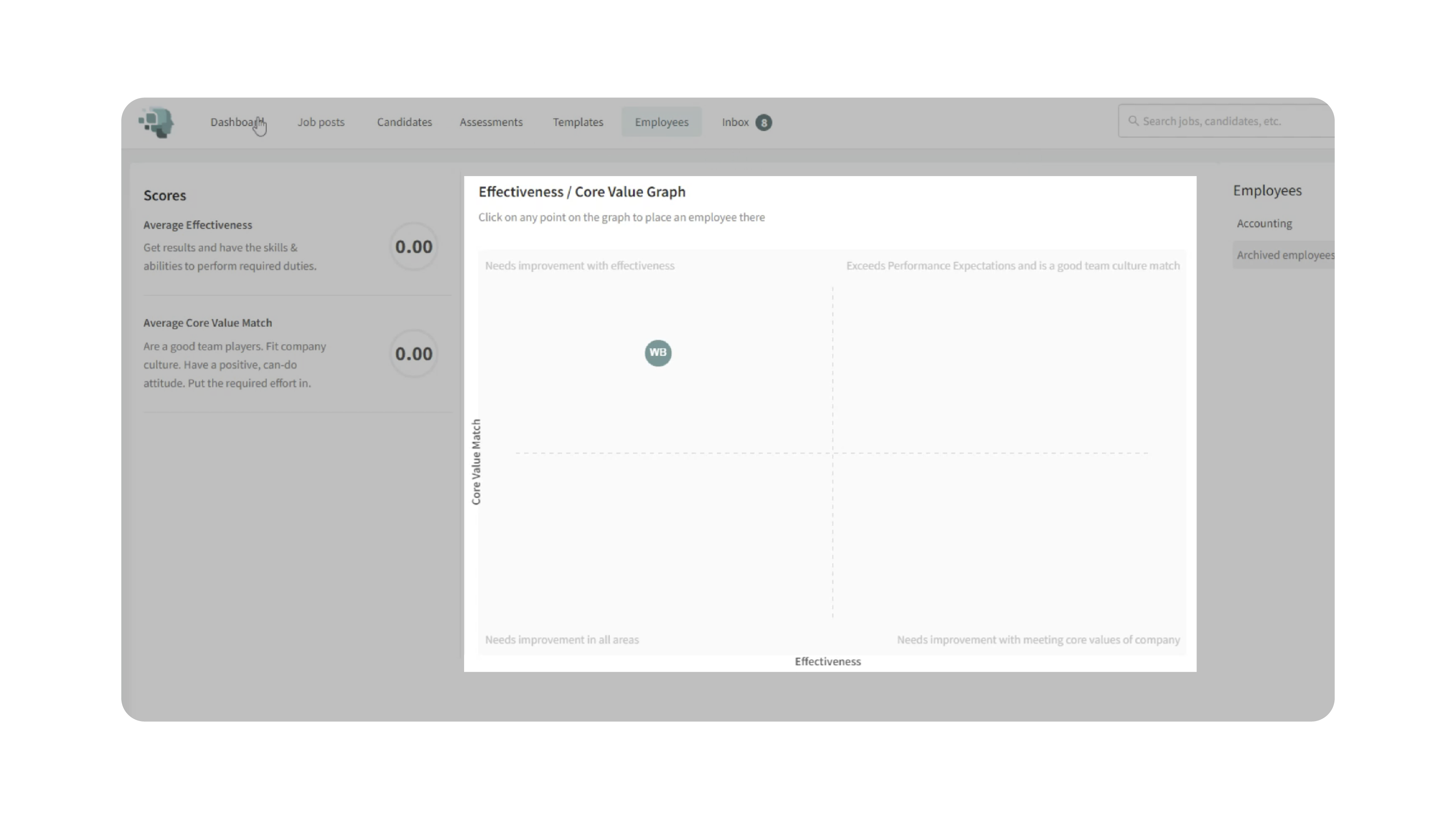
2. Add Employees:
There are three ways to add employees in Discovered:
- Method 1: Add Directly from the Chart
- Identify where the employee belongs on the grid based on their performance and core value alignment.
- Click the desired spot on the chart.
- Enter the employee’s details:
- Name (First and Last)
- Department (select an existing one)
- Position Title
- (Optional) Phone Number and Email Address
- Click Save Employee. (The employee will appear on the chart, positioned according to the selected quadrant.)

- Method 2: Add from the Menu
- Click the Add button and select Employee.
- Fill in the required fields:
- Name
- Department
- Position Title
- Click Save Employee. (Employees added this way appear in their department list but will not be placed on the chart until they receive a performance rating.)

- Method 3: Convert a Hired Candidate
- Go to your Job Dashboard and open a job posting.
- Change a candidate’s status to Hired.
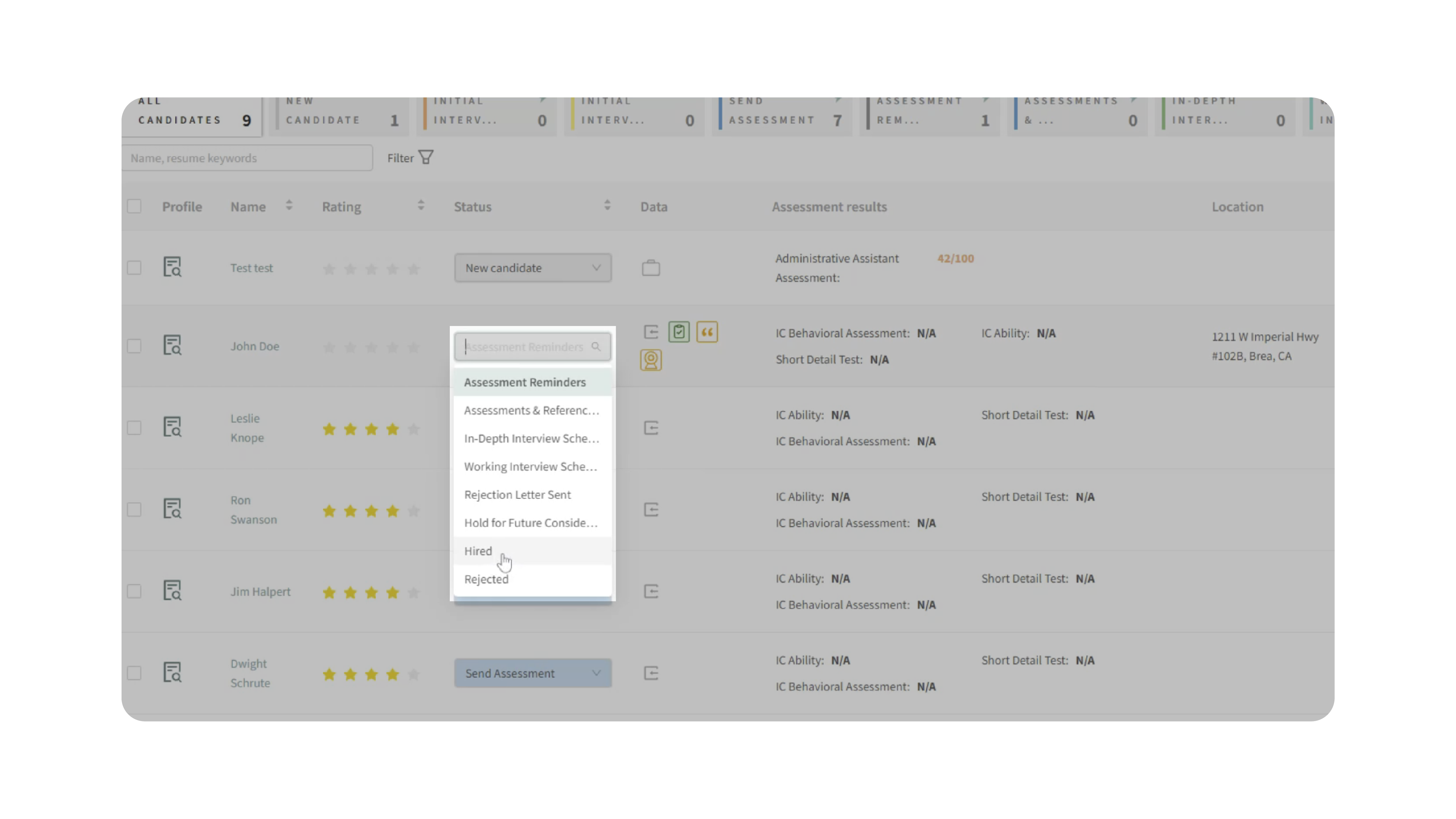
- When prompted, select an existing department or click to Add New Department.
- Click Move to add the hired candidate to the Employee Talent Grader.
- Note: “Move” simply copies the candidate to your employee list—they remain visible as a hired candidate in the job posting.

3. Add Departments:
- From the Employee Talent Grader page, click Add → Department.
- Enter a Department Title (e.g., “Software Engineering,” “Administrative Support”).
- Click Save Department.
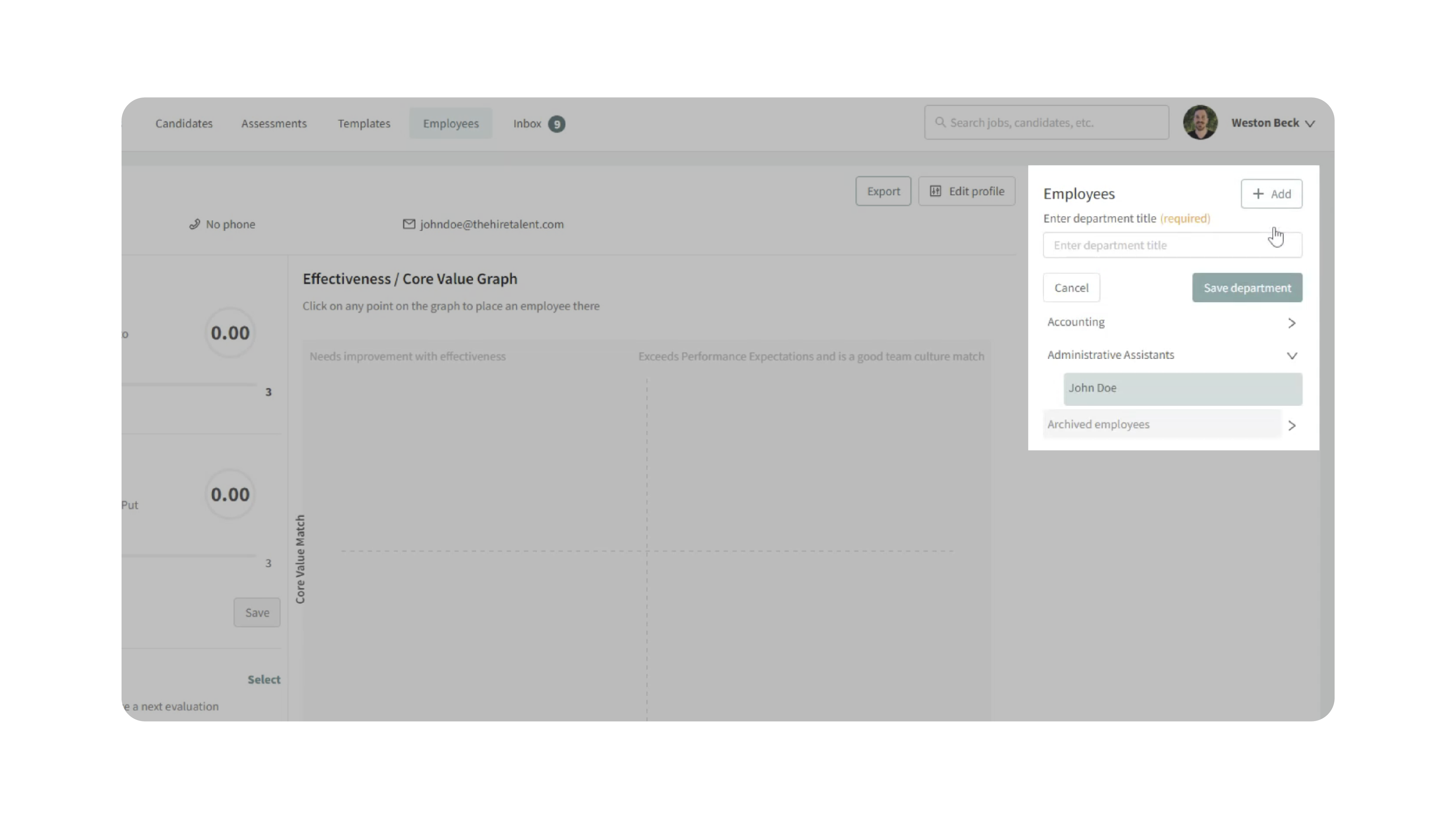
Once saved, the new department appears in your department list, ready to accept employees.
Why This Matters
Efficiently adding employees and departments helps maintain an organized, up-to-date snapshot of your company structure. Accurate employee records enable you to:
- Track performance and value alignment across departments.
- Keep reporting lines clear and organized.
- Streamline onboarding by converting hired candidates directly into employees.
- Maintain a single source of truth for your workforce data.
Use Cases
- HR Managers: Add new hires to the correct department immediately after onboarding.
- Department Leads: Update staff listings and performance data as team members grow.
- Recruiters: Seamlessly move candidates from hiring pipelines to active employee tracking.
- Executives: Monitor team structure and identify departments with growth needs.
Best Practices
- Be Consistent: Use standardized department names (e.g., “Accounting” vs. “Finance – Accounting”).
- Add as You Hire: Move new hires into the system right after setting their job status to Hired.
- Update Regularly: Adjust employee placement on the grid as their performance or alignment changes.
- Verify Data: Double-check that each employee has the correct department and position title.
- Visual Reference: Use the chart to quickly gauge where employees stand in terms of effectiveness and core value match.
What Happens Next
Once employees and departments are added:
- Employees appear in their assigned department lists and, if rated, on the Talent Grader chart.
- You can open individual employee profiles to update contact info, assign goals, and set review dates.
- Departments can be edited, renamed, or expanded as your team evolves.
- Hired candidates automatically sync with the Talent Grader, ensuring seamless tracking from recruitment to employment.
With the Employee Talent Grader, you can keep your organization structure clean, accurate, and performance-focused—all within a few clicks.