
Sign in with Google or Microsoft
Overview
Discovered supports third-party authentication via Google and Microsoft, giving you faster and more secure access to your account. Instead of remembering a separate password, you can log in with the same credentials you already trust.
Both options follow nearly identical steps, and once authenticated, you’ll be redirected directly to your Discovered dashboard.
How to Sign into Discovered with Google or Microsoft:
1. Go to the Login Page
- Navigate to: https://myaccount.discovered.ai
- On the login screen, you’ll see options to Sign in with Google or Sign in with Microsoft.

2. Sign in with Google
- Click Sign in with Google.

- A Google authentication window will appear. Choose the email address you want to use.
- Confirm the permissions requested by Discovered and click Continue / OK.
- Once authenticated, you’ll be redirected to your Discovered dashboard.
3. Sign in with Microsoft
- Click Sign in with Microsoft.
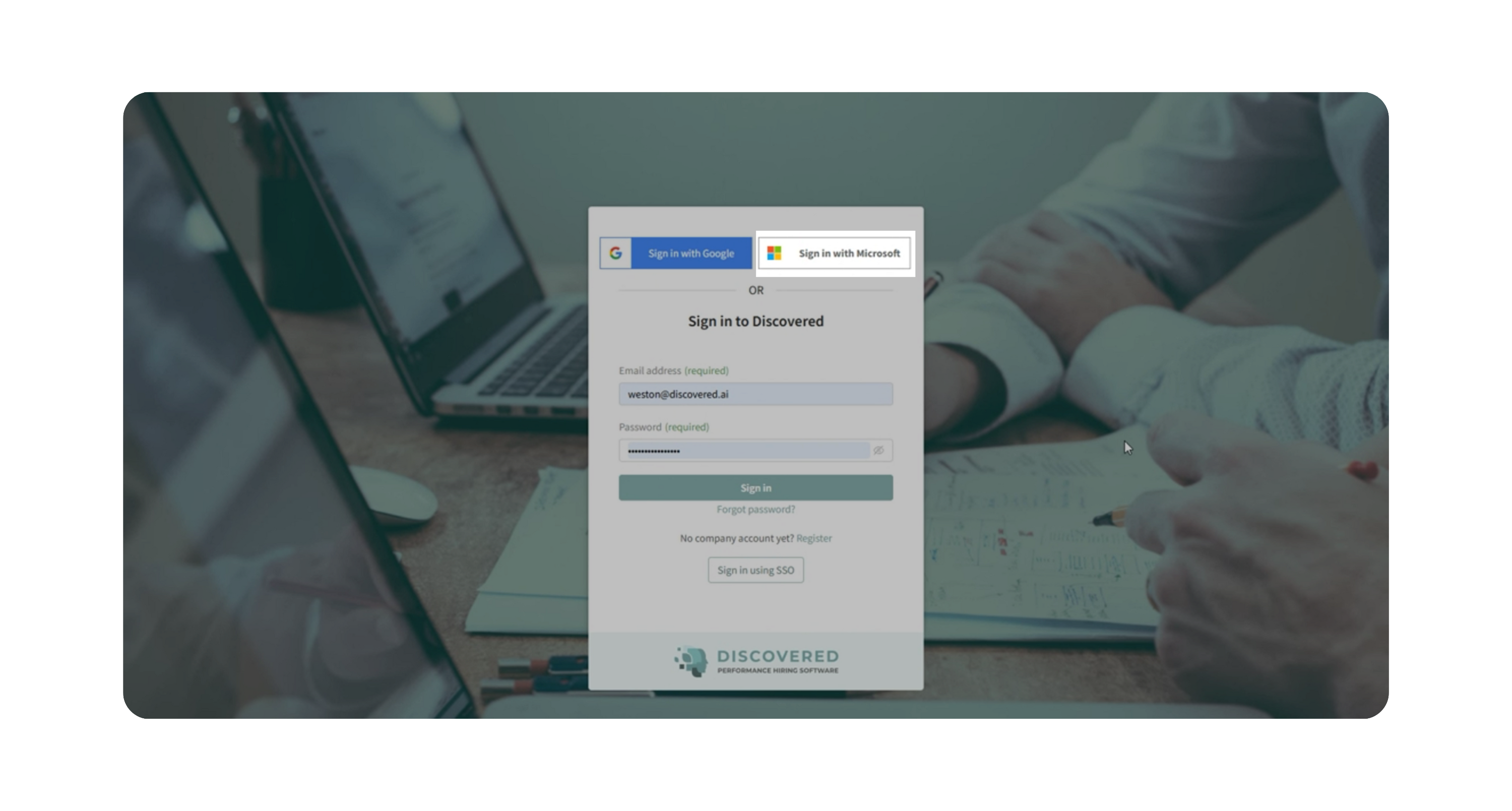
- A Microsoft login window will appear. Select your Microsoft account and follow the prompts.
- Confirm the permissions and complete authentication.
- You’ll then be redirected to your Discovered dashboard.
Why This Matters
Using Google or Microsoft sign-in offers several advantages:
- Faster access – No need to type in a password each time.
- Fewer credentials to manage – Use the same login details you already trust.
- Enhanced security – Both providers use industry-standard authentication protocols.
Use Cases
- You prefer convenience and don’t want to manage another password.
- Your organization already uses Google Workspace or Microsoft 365.
- You want to reduce login errors by using one secure account across tools.
Best Practices
- Use your work email when signing in to keep access aligned with your company account.
- Make sure your Google or Microsoft account is active and secured with two-factor authentication.
- If your company requires single sign-on (SSO), follow your internal IT guidelines.
Troubleshooting & FAQ
Q: I don’t see the Google or Microsoft buttons on the login page.
A: Ensure you’re visiting the correct URL: https://myaccount.discovered.ai. If still missing, clear your browser cache or try another browser.
Q: I originally signed up with an email and a password. Can I switch to Google or Microsoft login?
A: Yes—if the email address on your Discovered account matches your Google or Microsoft account. If they don’t match, contact support to link them.
Best Practices
- Use the same email address in Discovered that you use for Google or Microsoft to avoid account mismatches.
- If your organization enforces SSO, always log in through your designated provider.
- For added protection, enable two-factor authentication (2FA) within your Google or Microsoft account.
What Happens Next
Once set up:
- You can log into Discovered anytime using your Google or Microsoft button.
- No additional password management is required.
- You can switch between login methods if your email matches across accounts.