
Use Assessments
Overview
The Assessments card lets you define which tests should be automatically applied whenever candidates reach an assessment stage in your pipeline. Discovered recommends assessments based on the job type you select, but you can customize the defaults to fit your role. Once saved, these defaults are pulled into the Processing step whenever you add an assessment automation, saving time and ensuring consistency.
How to Use Assessments:
1. Open the Assessments Card
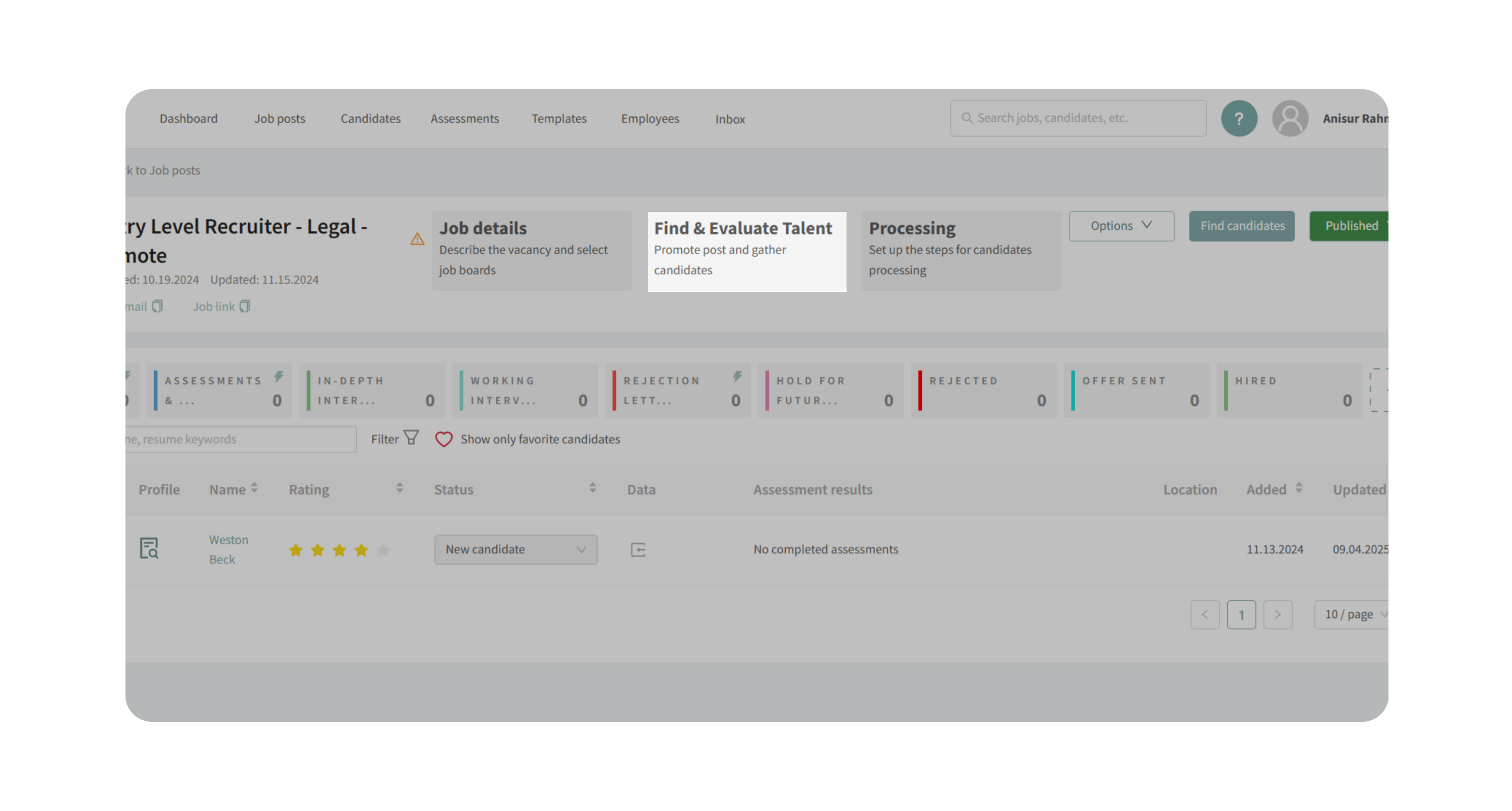
- Go to your job posting and click the Find and Evaluate Talent tab.
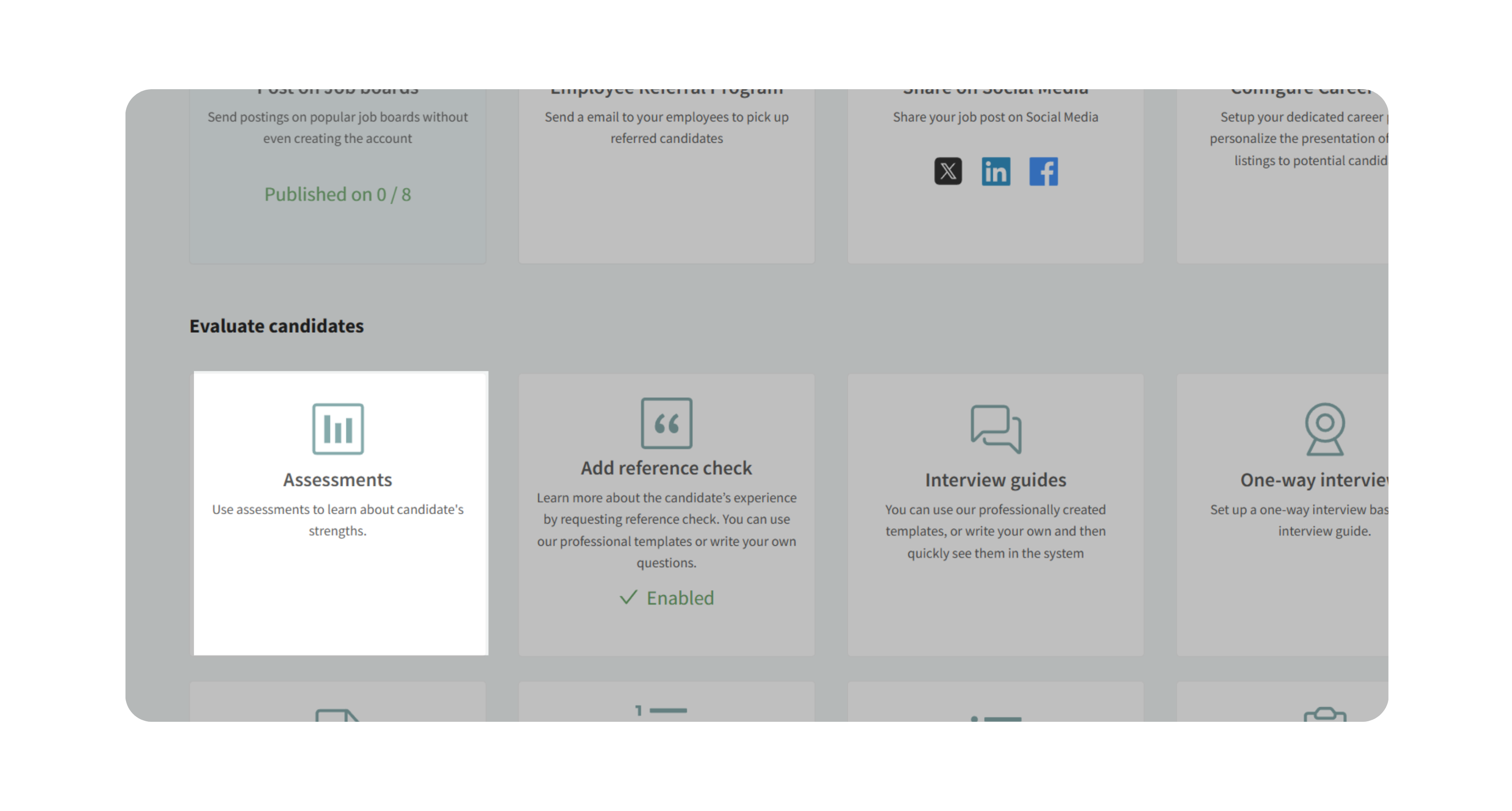
- Scroll to Evaluate Candidates and click Assessments.
2. Select Default Assessments
- Review the recommended assessments listed (based on job type).
- Deselect any you don’t want and select the ones you do.
- Click Save.
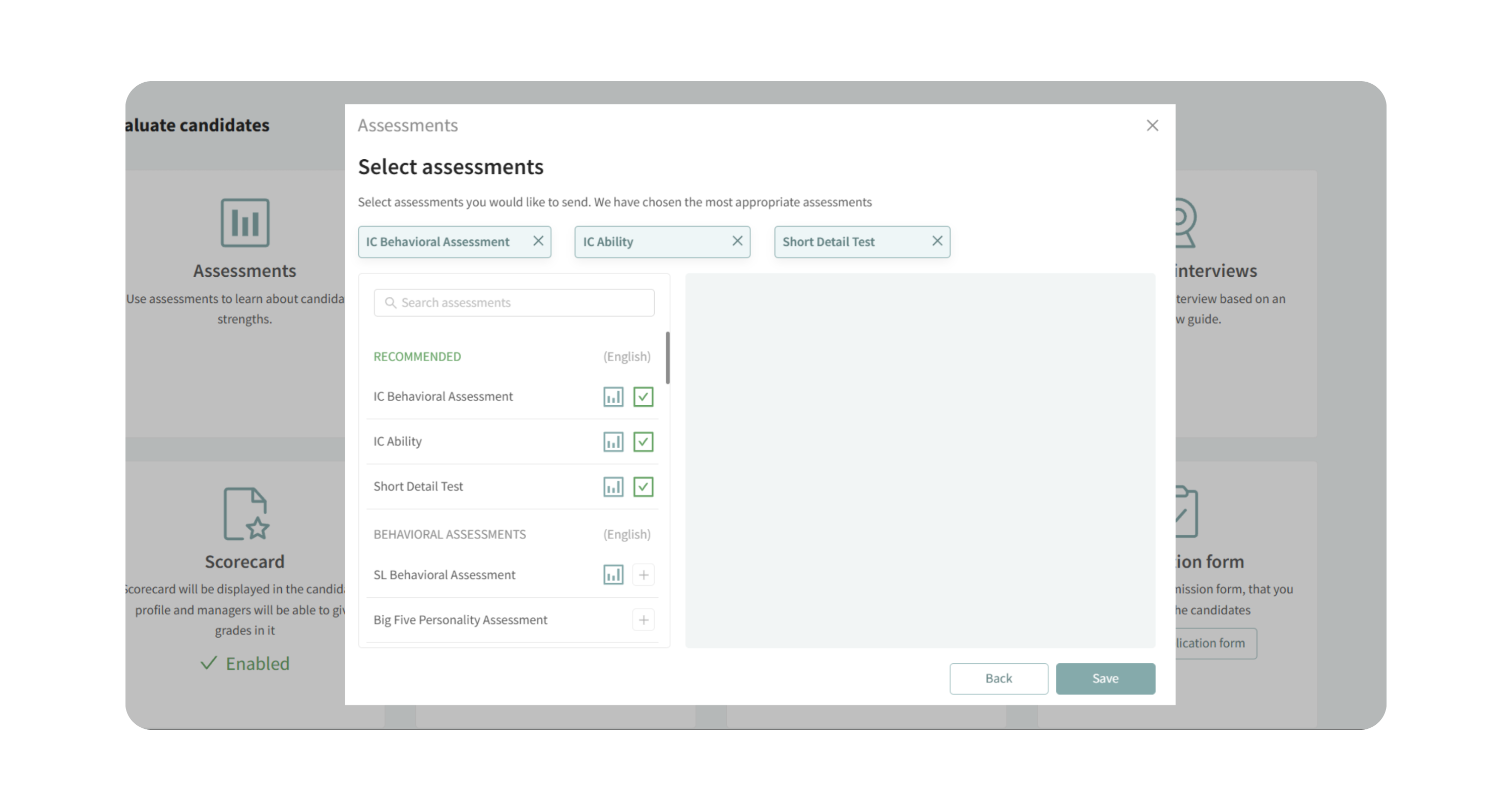
Note: You can click the Report icon to learn more about a specific assessment. It'll help you explore how a report looks like and what each section means.
3. Apply Defaults in Processing
- Navigate to the Processing tab of your job posting.
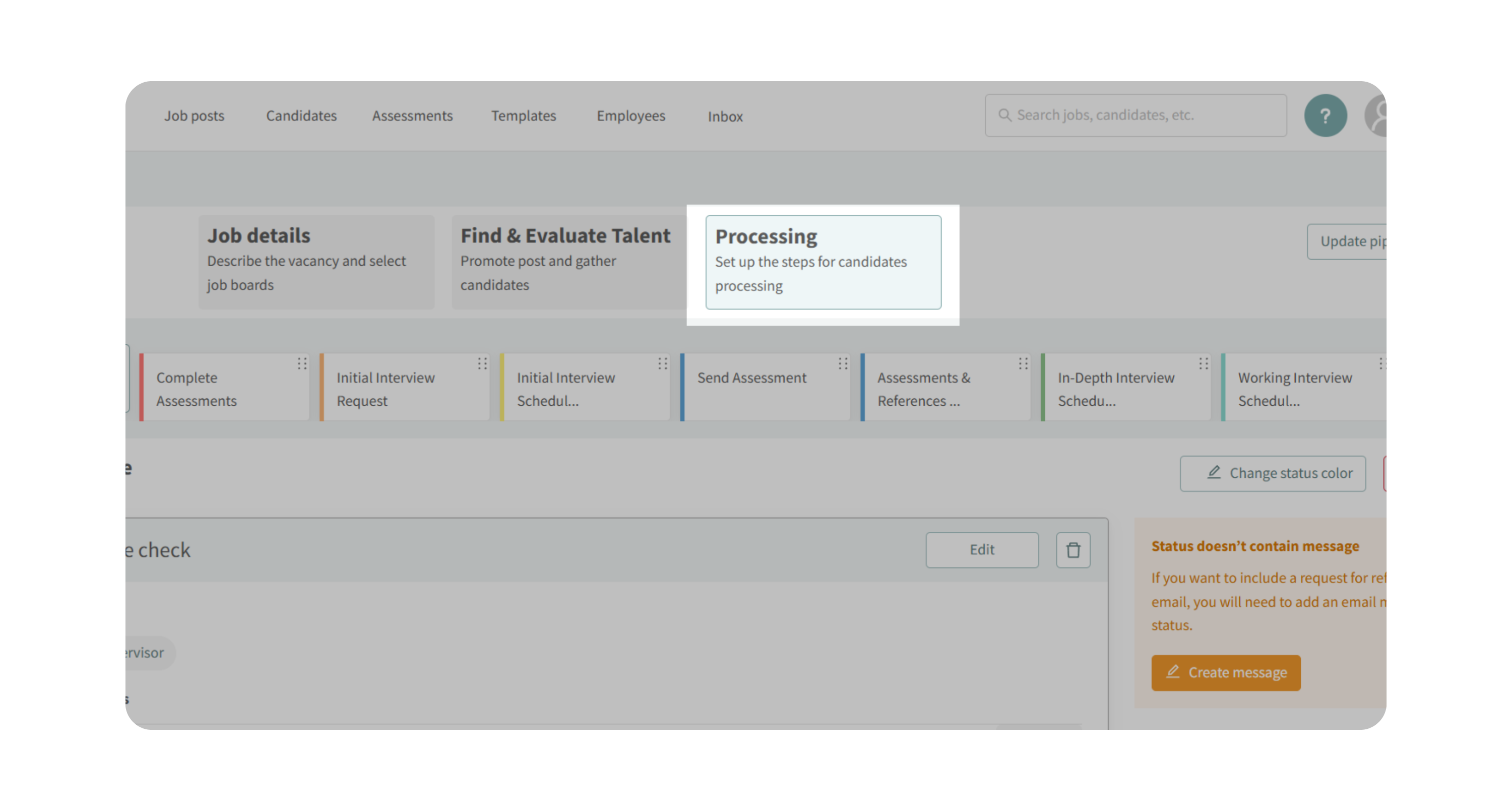
- Add or edit a message for a candidate status (e.g., Send Assessment).
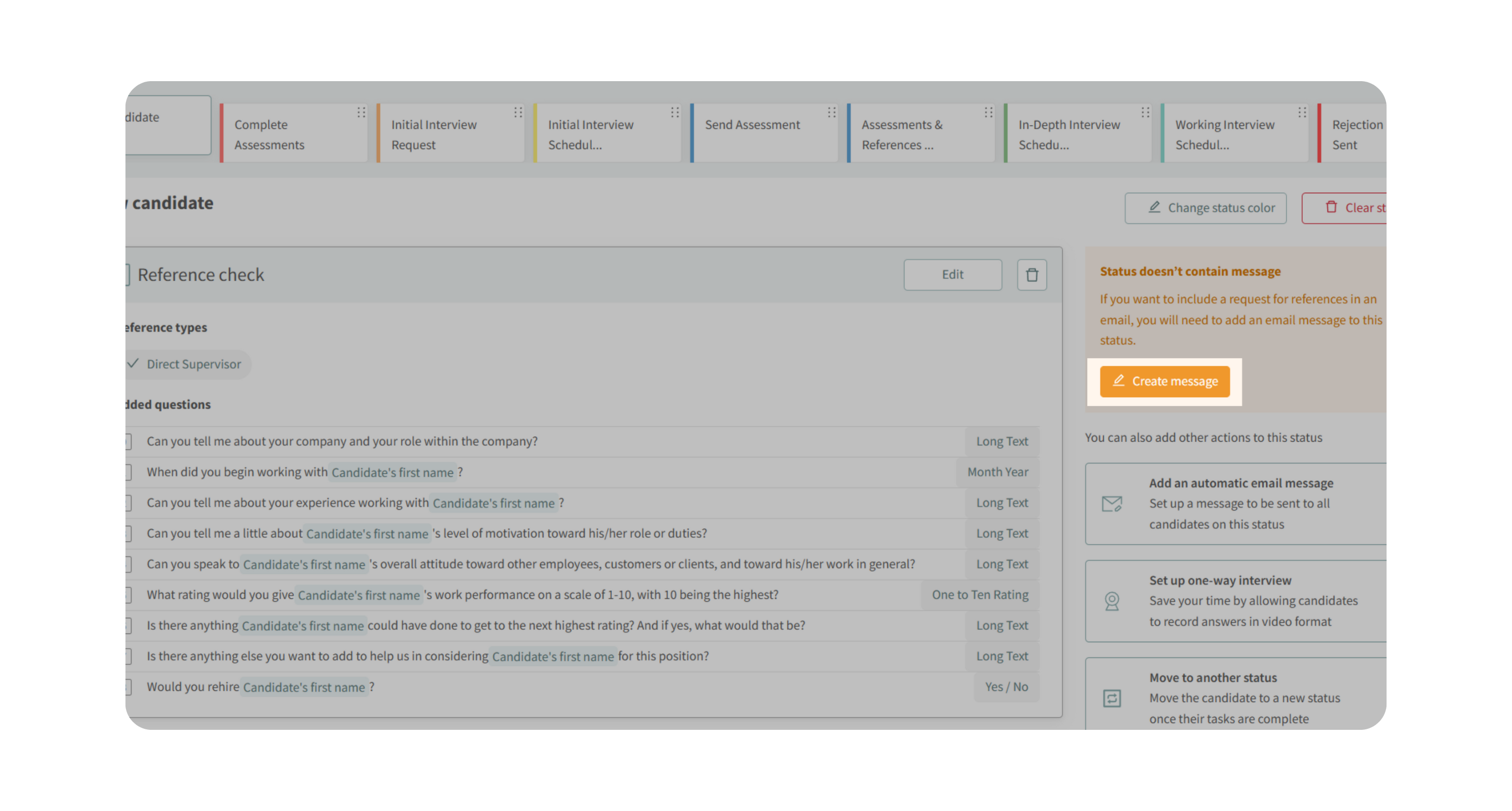
- Insert the Candidate Assessments Link token in the message body.
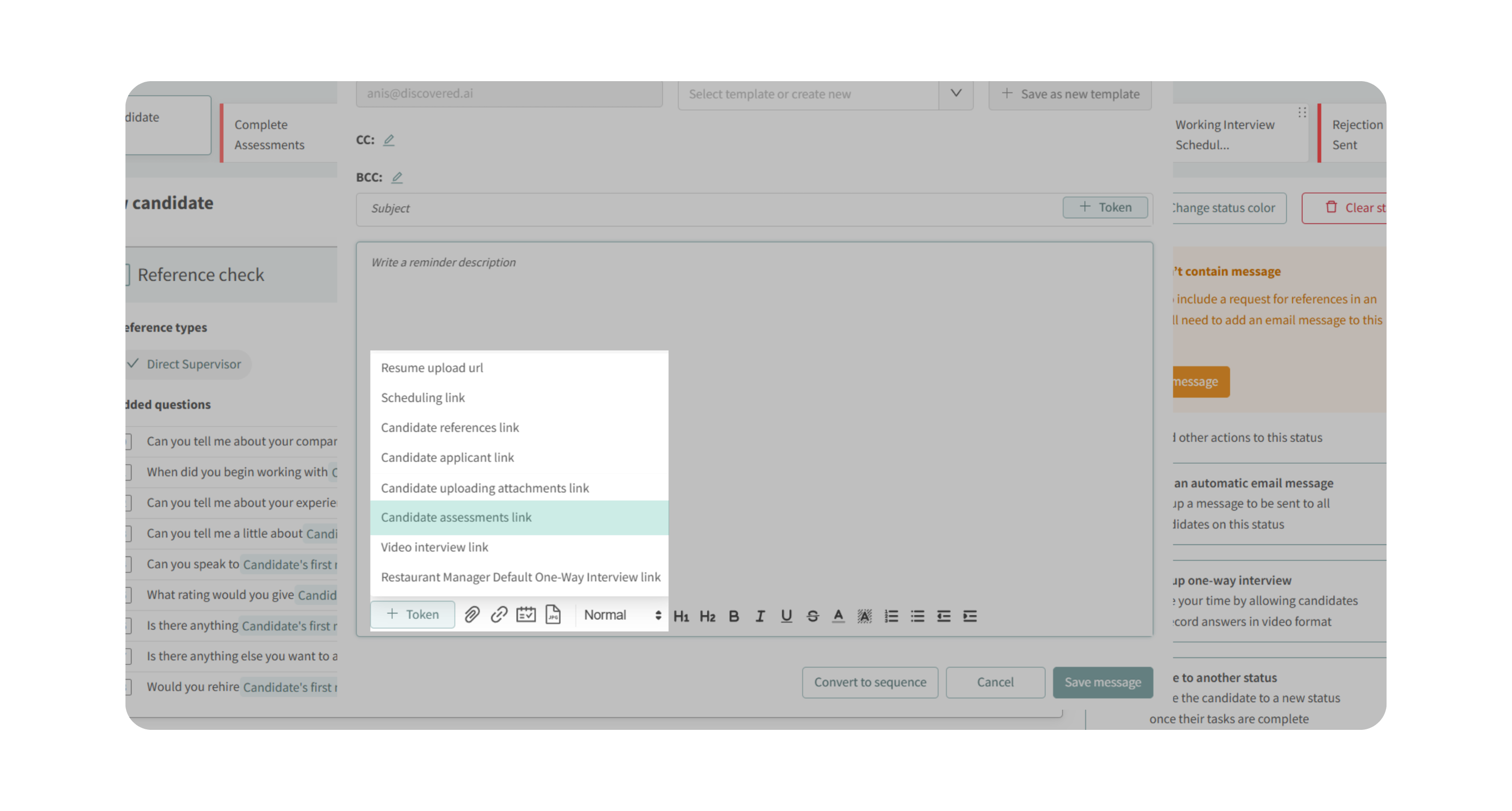
- Save the message.
- Discovered automatically attaches the default assessments you set in the card.
4. Update Defaults Across Your Pipeline
- If you want to apply new defaults to all statuses:
- Remove the old assessments from the status.
- Re-save the message with the Assessments Link token.
- The new defaults will appear automatically.
- To update the entire pipeline at once, click Update Pipeline to reapply your default templates.
5. Automatic Job Type Detection:
- Job type is now automatically selected based on the job title and job description.
- Every time the job title changes, the system re-evaluates and updates the job type if needed.
- Removes manual selection and improves downstream automation (assessments, workflows).
Note: Job type descriptions will continue to be improved to give the AI more context.
Why This Matters
- Saves time by applying assessments automatically instead of configuring them manually each time.
- Ensures candidates are consistently evaluated against the right criteria for the role.
- Aligns assessments with the job type so recommendations are more relevant.
Use Cases
- An accounting job defaults to behavioral + ability tests, but you want to add a technical short detail test.
- You want to standardize assessments across all job postings for sales roles.
- You need to quickly adjust assessments for an existing pipeline after revising hiring requirements.
Best Practices
- Always review recommended assessments—they’re a good starting point but may need tweaks.
- If you make changes mid-hiring cycle, remember to update the Processing step so candidates get the right tests.
- For consistency, use the Update Pipeline button when rolling out new defaults across all statuses.
What Happens Next
Candidates who reach an assessment status in your pipeline automatically receive the assessments you’ve set as defaults. Results will be linked to their candidate profile, making it easy for your team to compare performance and progress in one place.