
Sign in with Email + 2FA (Email)
Securely access Discovered by signing in with your email and password, plus a verification code sent to your email inbox.
Overview
When two-factor authentication (2FA) is enabled on your Discovered account, you’ll need to verify your login in two steps:
- Enter your email and password.
- Confirm your identity using a 6-digit code sent to your email.
This ensures that even if someone has your password, they cannot log in without also having access to your email account.
How to Sign in with Email + 2FA (Email):
1. Go to the Login Page
- Navigate to https://myaccount.discovered.ai.
- Enter your email address and password.
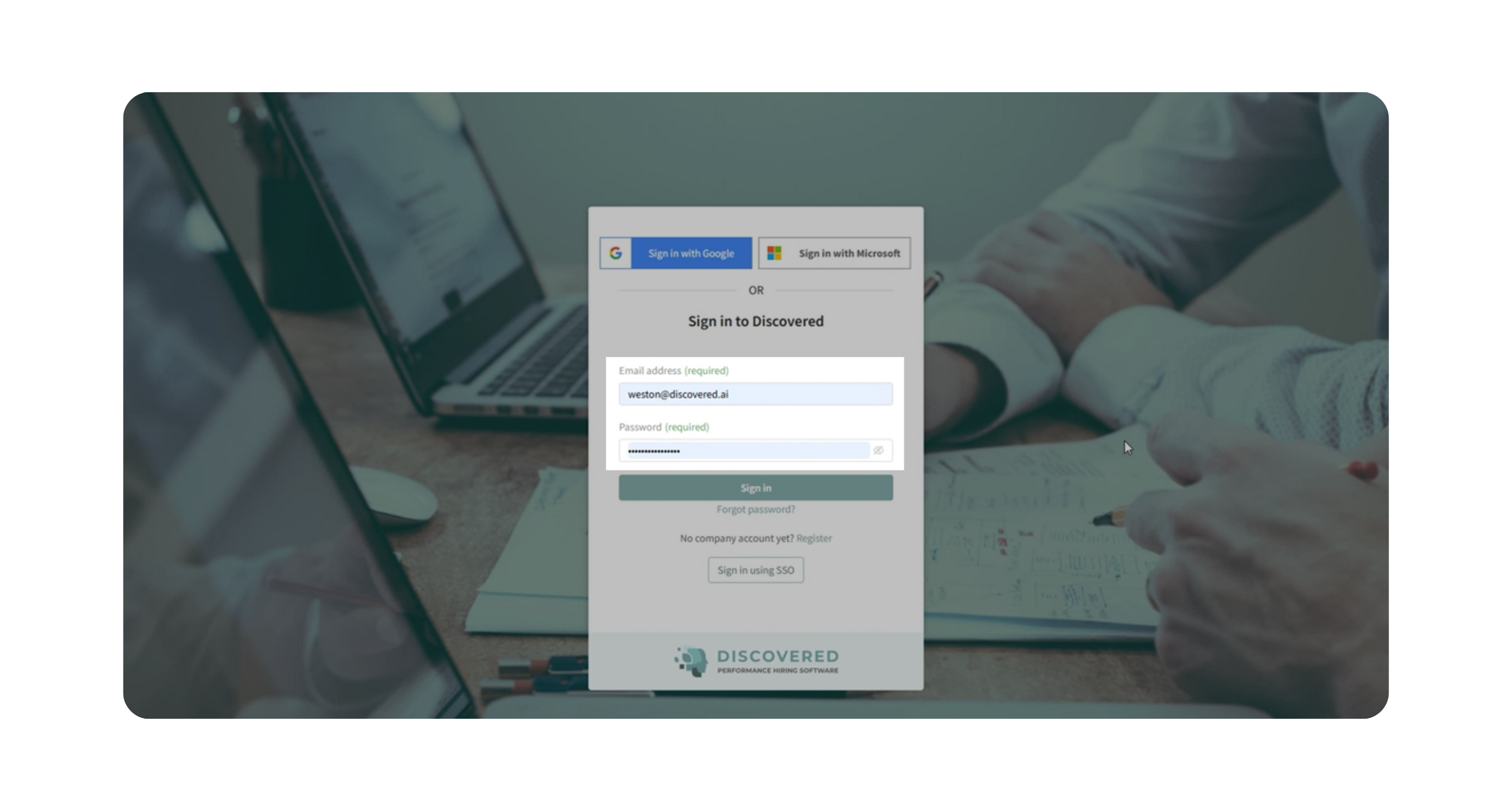
- Click Sign In.
2. Enter the Verification Code
- After signing in, you’ll see a prompt asking you to authenticate your account.
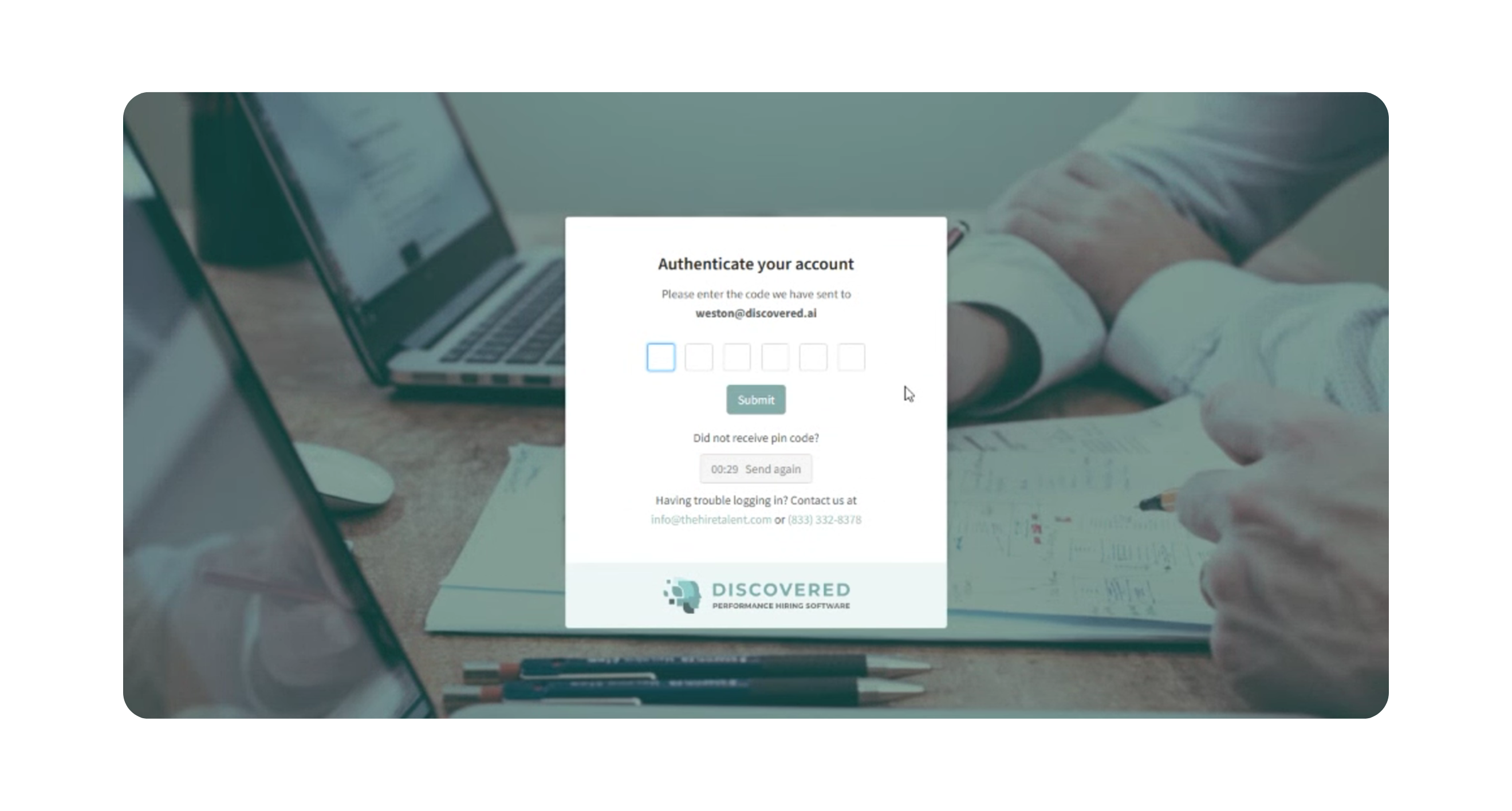
- Check your email inbox for a message with the subject line: “Your verification code”.
- The email will contain a unique 6-digit code.
3. Copy and Paste the Code
- Copy the 6-digit code from the email.
- Paste it into the verification fields on the login screen (the numbers will auto-fill into each box).
4. Complete the Sign-In
- Click Submit.
- If the code is correct, you’ll be logged in and redirected to your Discovered dashboard.
Why This Matters
Two-factor authentication adds:
- Extra protection – Prevents unauthorized access even if your password is compromised.
- Real-time verification – Each login requires a new code sent to your email.
- Compliance and security – Keeps sensitive hiring and candidate data secure.
Troubleshooting
- Didn’t receive the code?
- On the verification screen, click Send Again.
- This generates a new code and invalidates any previous ones.
- Important: If you receive multiple emails, only the most recent code will work.
- Still not receiving codes?
- Check your spam/junk folder.
- Ensure your email address is correct and accessible.
- Contact support at support@discovered.ai if the issue persists.
Use Cases
- You prefer signing in with email instead of Google or Microsoft login.
- Your company enforces 2FA for compliance and security.
- You want an additional layer of protection for candidate and company data.
Best Practices
- Always use the latest code if multiple verification emails arrive.
- Whitelist support@discovered.ai in your inbox to prevent emails from being filtered.
- Keep your registered email address up to date in your profile settings.
- If possible, enable both email and SMS 2FA for backup access.
What Happens Next
Once you’re signed in:
- You’ll land on your Discovered dashboard.
- 2FA will be required again the next time you log in.
You can change your 2FA preferences (email or text message) in your Profile Settings.