
Tracking Candidate Communications & Replies
Overview
The Basic Profile Settings section lets you update your personal information, adjust optional contact details, and change your password. These settings ensure that your name, title, and email are displayed correctly across the platform and that your account remains secure.
How to Tracking Candidate Communications & Replies:
Option 1: Microsoft Email Integration (Recommended for Outlook Users)
If your organization uses Microsoft (Outlook) as its email provider, Discovered can automatically track candidate replies.
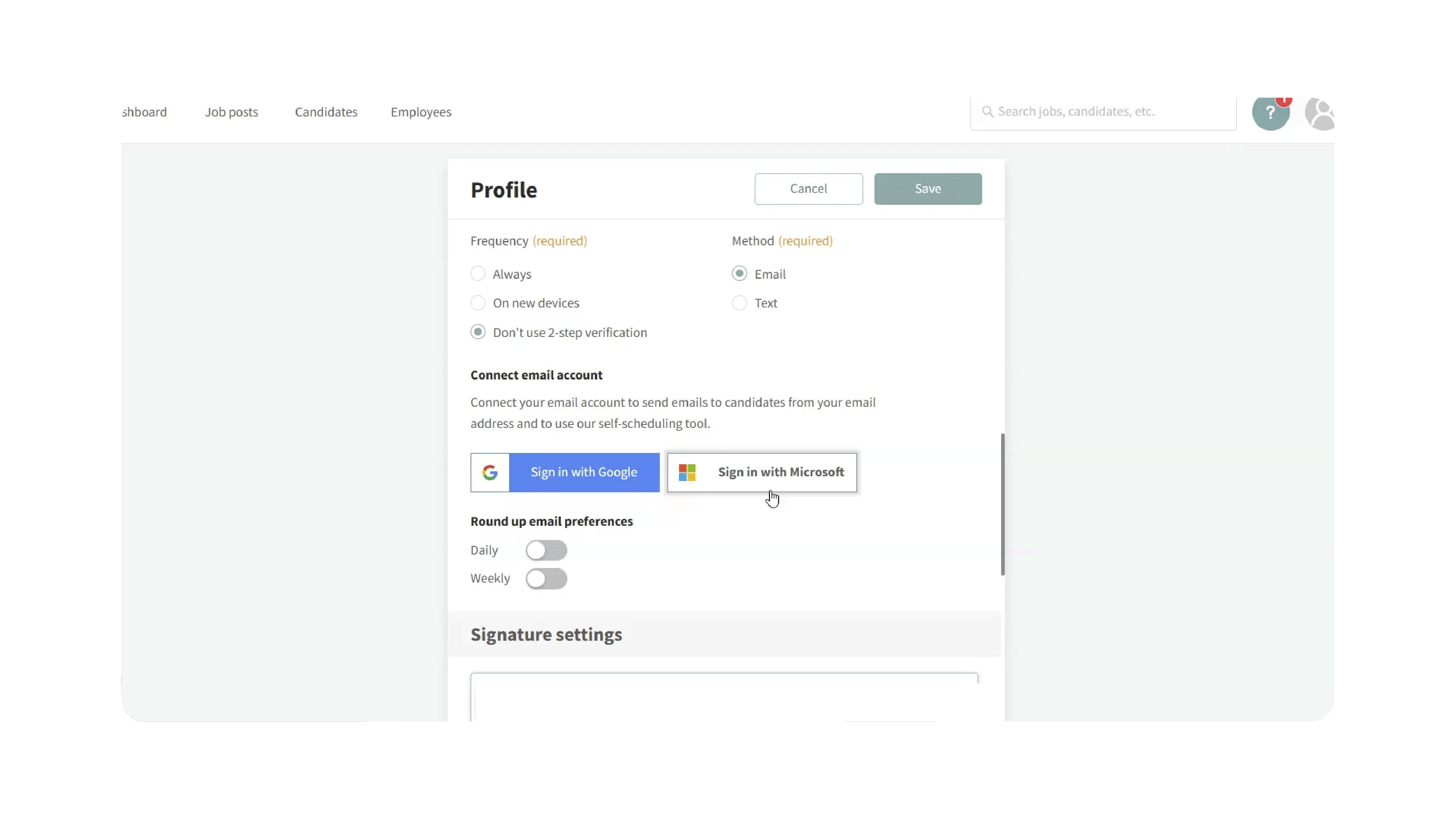
How it works:
- Emails initiated in Discovered are sent from your integrated Microsoft inbox as well.
- When a candidate replies, the response is automatically captured in their profile.
Key notes:
- Replies are fully tracked.
- Calendar and scheduling tools remain available.
- This option is not supported for Google email replies due to permission limitations.
Best for: Teams using Microsoft Outlook who want full email and scheduling functionality.
Option 2: Discovered-Generated Email Address (Full Tracking, No Calendar)
You can remove your email integration and use a Discovered-generated email address for all candidate communications.
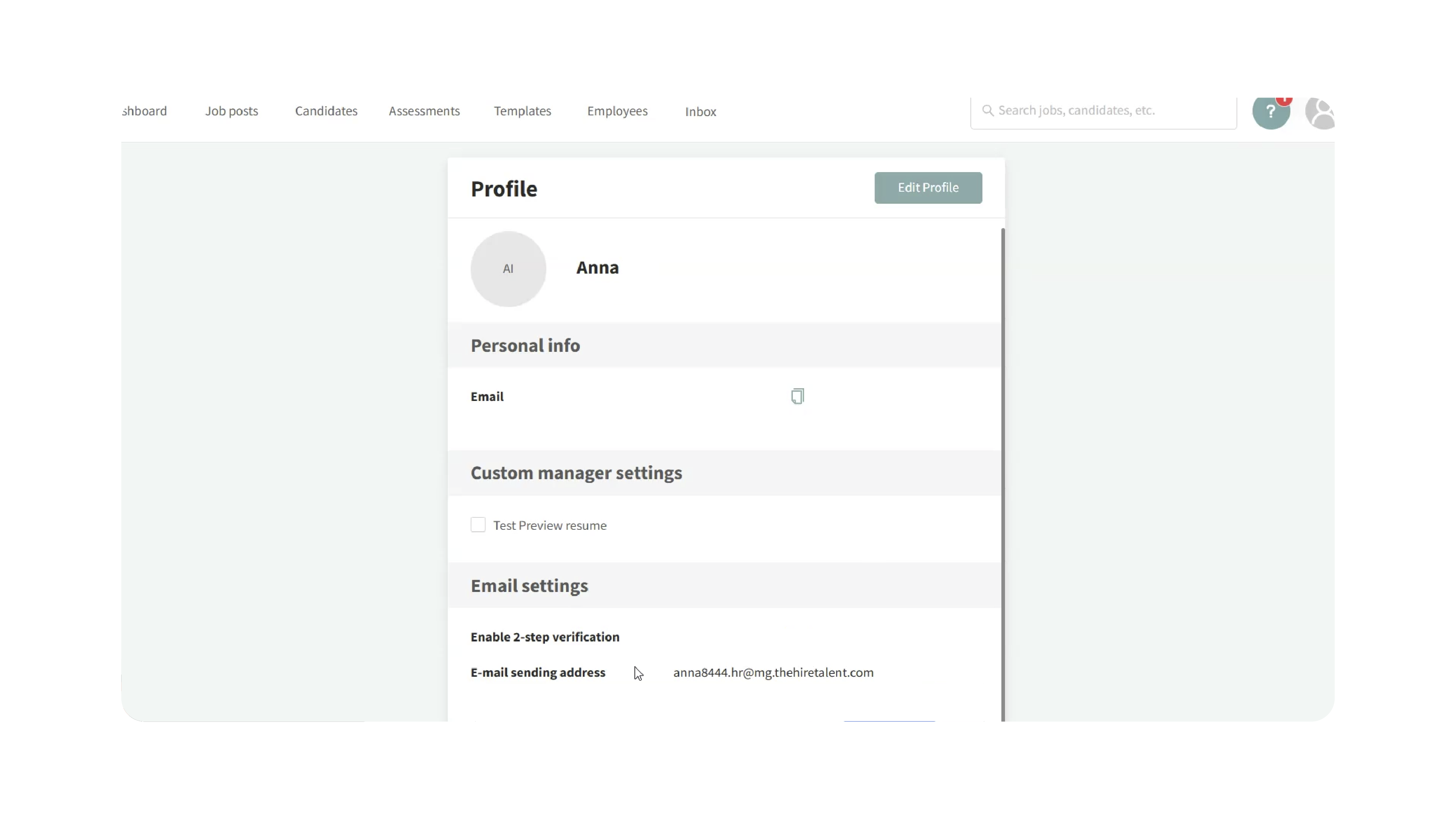
How it works:
- Remove your email integration in Discovered.
- Discovered assigns you a unique
@mg.thehiretalent.comemail address. - All emails sent to and from this address are tracked automatically.
Important considerations:
- All replies are captured in candidate profiles.
- Your calendar is not integrated, so scheduling automations are unavailable.
Best for: Teams that prioritize complete email tracking and do not rely on automated scheduling.
Option 3: “Use One Email for All Communications” (Job-Level Tracking)
This option assigns a unique email address to each job posting, ensuring all candidate replies are tracked at the job level.
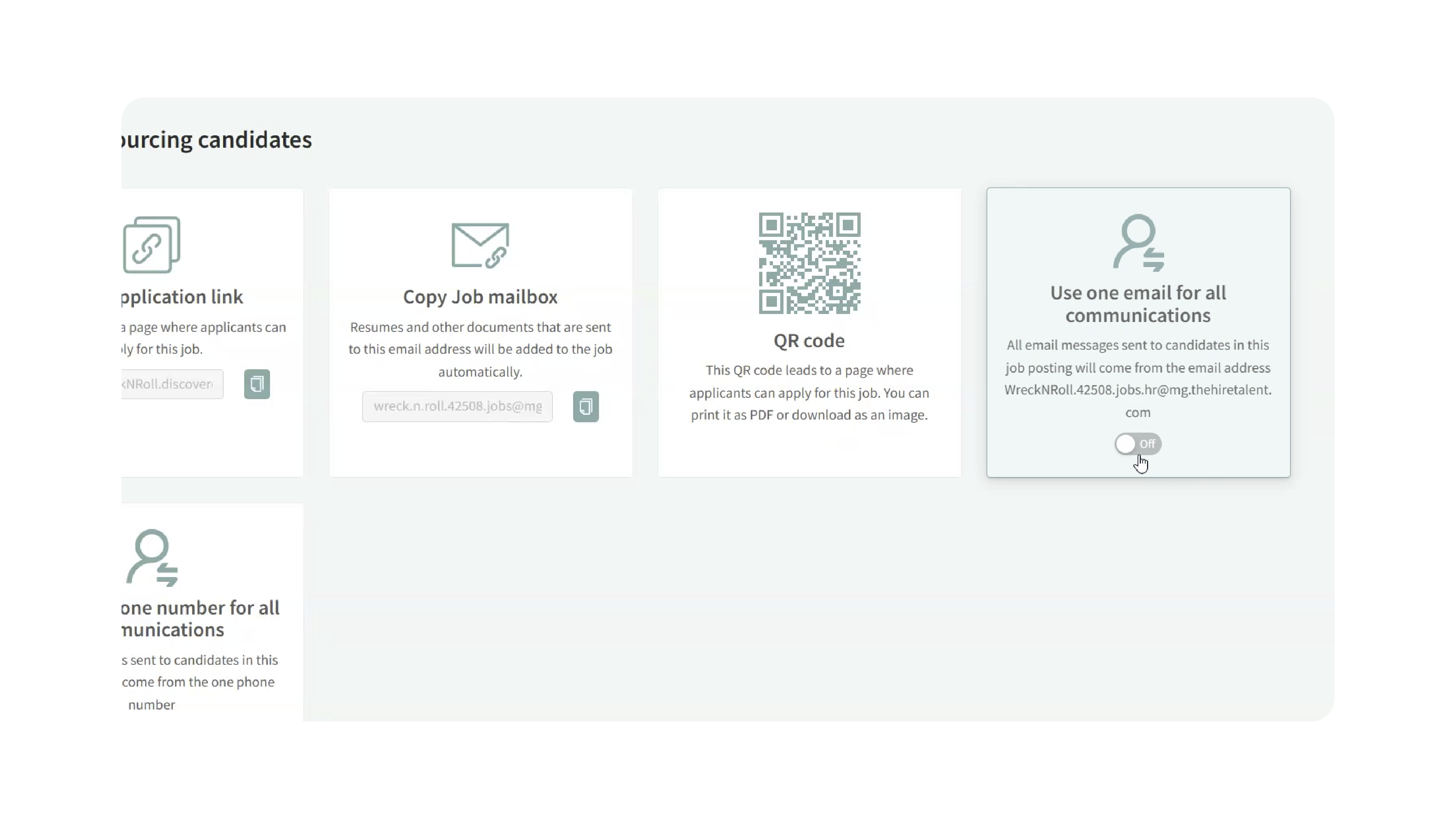
How it works:
- Open a job posting.
- Go to Find and Evaluate Talent.
- Scroll to Tools for Sourcing Candidates.
- Enable Use one email for all communications.
Discovered generates a job-specific email (based on the company name and job ID).
All outbound messages for that job use this email, and all replies are logged to the correct candidate profiles.
Key notes:
- Candidate replies are always tracked.
- Works well with Google email providers.
- Scheduling tools remain available.
Best for: Google Workspace users who want both scheduling and reliable email tracking.
Why This Matters
Tracking candidate communications ensures:
- Complete visibility into candidate conversations
- Better collaboration across hiring teams
- Accurate historical records for compliance and reporting
- No missed responses or lost context
Choosing the right tracking method helps maintain a seamless candidate experience while supporting your team’s workflow.
Use Cases
- Recruiters: Keep all candidate replies visible in one place.
- Hiring Managers: Review candidate conversations without forwarding emails.
- Teams using Google Workspace: Track replies while still using scheduling tools.
- High-volume hiring: Reduce confusion and missed follow-ups.
Best Practices
- Use Microsoft integration if you rely heavily on email replies and Outlook.
- Enable job-level communication emails if using Google Workspace.
- Avoid removing email integration unless scheduling tools are not required.
- Standardize your approach across the team to ensure consistent tracking.
What Happens Next
Once one of these methods is enabled:
- Candidate replies automatically appear in their profiles.
- Communication history is centralized and searchable.
- Hiring teams can collaborate more effectively with full context.
Discovered gives you flexibility to choose the setup that best fits your email provider and hiring workflow—ensuring no candidate communication is ever lost.
If you have questions or need help selecting the right option, our support team is here to help.