
Scheduling Settings & Interview Links
Overview
Discovered’s scheduling tools allow recruiters and hiring teams to automate interview scheduling, reduce back-and-forth communication, and create a smoother candidate experience.
Because Discovered is currently transitioning to a redesigned scheduling system, your account may see either:
- The Classic Scheduling Settings experience
- The New Scheduling Settings & Interview Links experience
This article covers both versions so you can quickly find the instructions relevant to your account.
The scheduling system helps teams:
- Sync calendars with Google or Microsoft
- Share interview scheduling links with candidates
- Automatically schedule interviews
- Send reminders and confirmations
- Reduce no-shows
- Coordinate interviews across hiring teams
- Manage one-on-one and group interviews
Which Scheduling Version Am I Using?
You Are Using the Classic Scheduling System If:
- You manage scheduling primarily from your user profile
- You only have a single scheduling link
- You do not see sections like:
- Scheduling Links
- Manage Interviews
- Access Control
- Manage Calendars
You Are Using the New Scheduling System If:
- You see a dedicated Scheduling Settings page
- You can create multiple scheduling links
- You can configure interview reminders
- You see sections such as:
- General Settings
- Scheduling Links
- Manage Interviews
- Access Control
- Integrations
- Manage Calendars
Classic Scheduling Settings
Overview
The Classic Scheduling System allows users to connect their calendar and share a scheduling link with candidates for interview booking.
This version supports:
- Google and Microsoft calendar integration
- Basic availability management
- Scheduling link sharing
- Automated calendar syncing
Setting Up Classic Scheduling:
1. Connect Your Calendar
Navigate to:
Profile Settings → Calendar Settings
Connect either:
- Google Calendar
- Microsoft Calendar
Once connected, Discovered can:
- Detect your availability
- Create interview events
- Sync scheduled meetings automatically
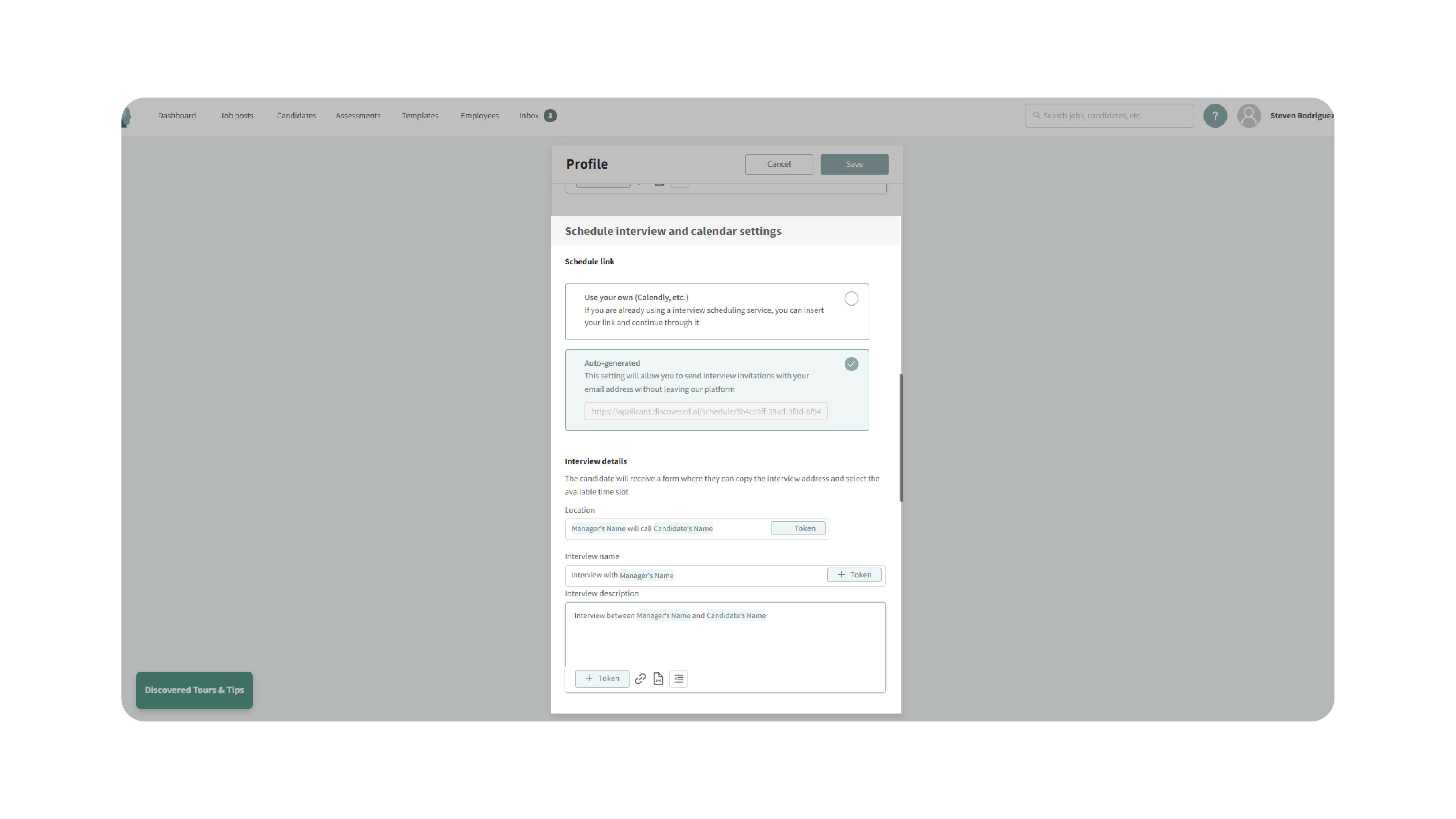
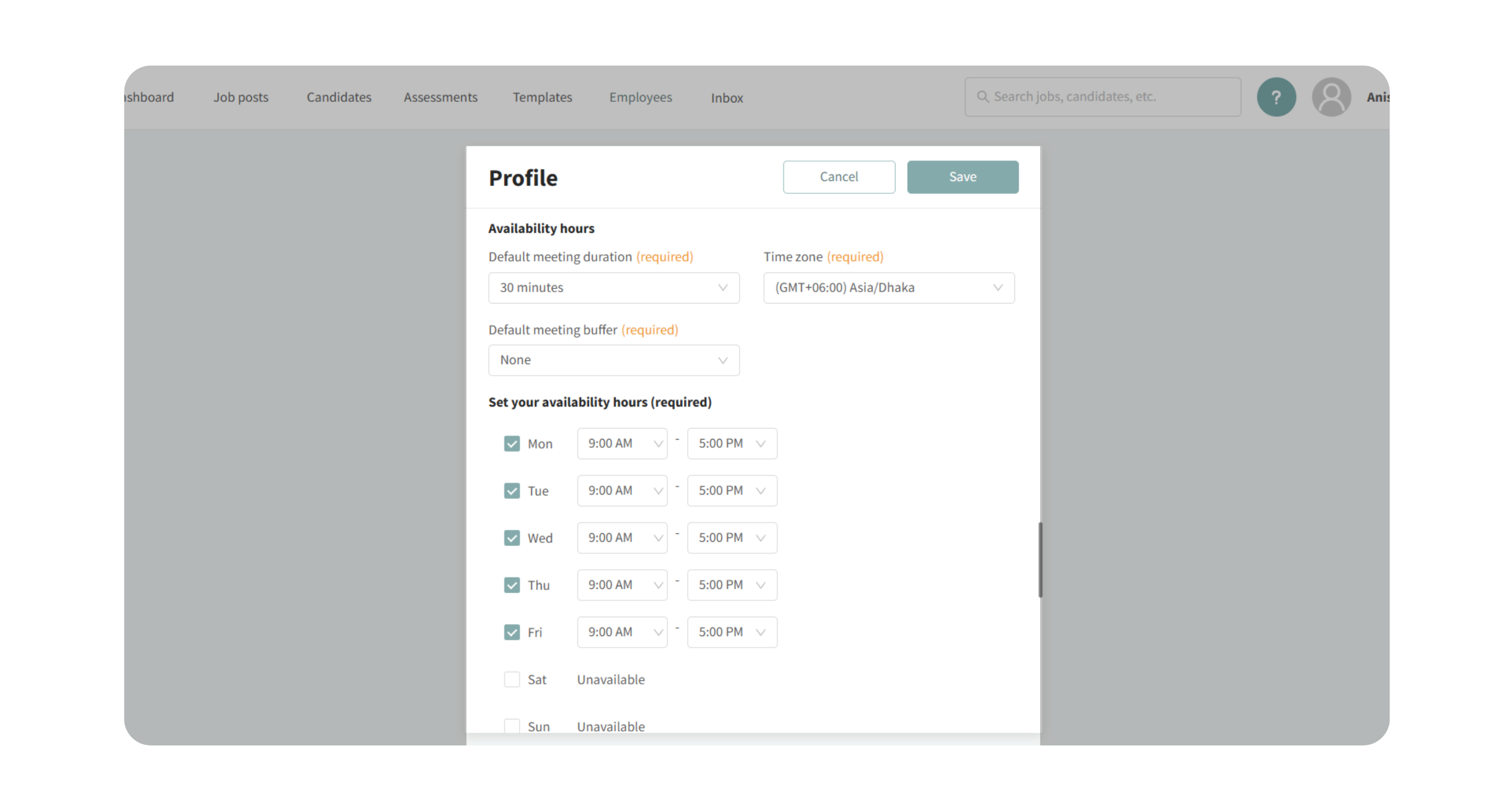
2. Configure Availability
Set:
- Available interview hours
- Time zone preferences
- Meeting buffers between interviews
This controls when candidates can schedule meetings with you.
3. Share Your Scheduling Link
Once configured, your scheduling link can be:
- Sent manually to candidates
- Used in automations and templates
- Added to interview workflow messages
Candidates can select available times directly from your calendar.

4. Candidate Scheduling Experience
When candidates open the link:
- They see your available time slots
- They choose a meeting time
- The meeting is automatically added to your calendar
Discovered automatically syncs the scheduled interview with the candidate profile.

New Scheduling Settings & Interview Links
Overview
The redesigned Scheduling Settings system centralizes all interview scheduling tools into a single workspace with significantly more flexibility and automation.
This version includes:
- Multiple scheduling links
- One-on-one and group interviews
- Automated reminders
- Teams, and Google Meet integrations
- Shared scheduling visibility
- Team interview management
- Advanced availability controls
- Candidate rescheduling and withdrawal tools
Step-by-Step Setup (New Version)
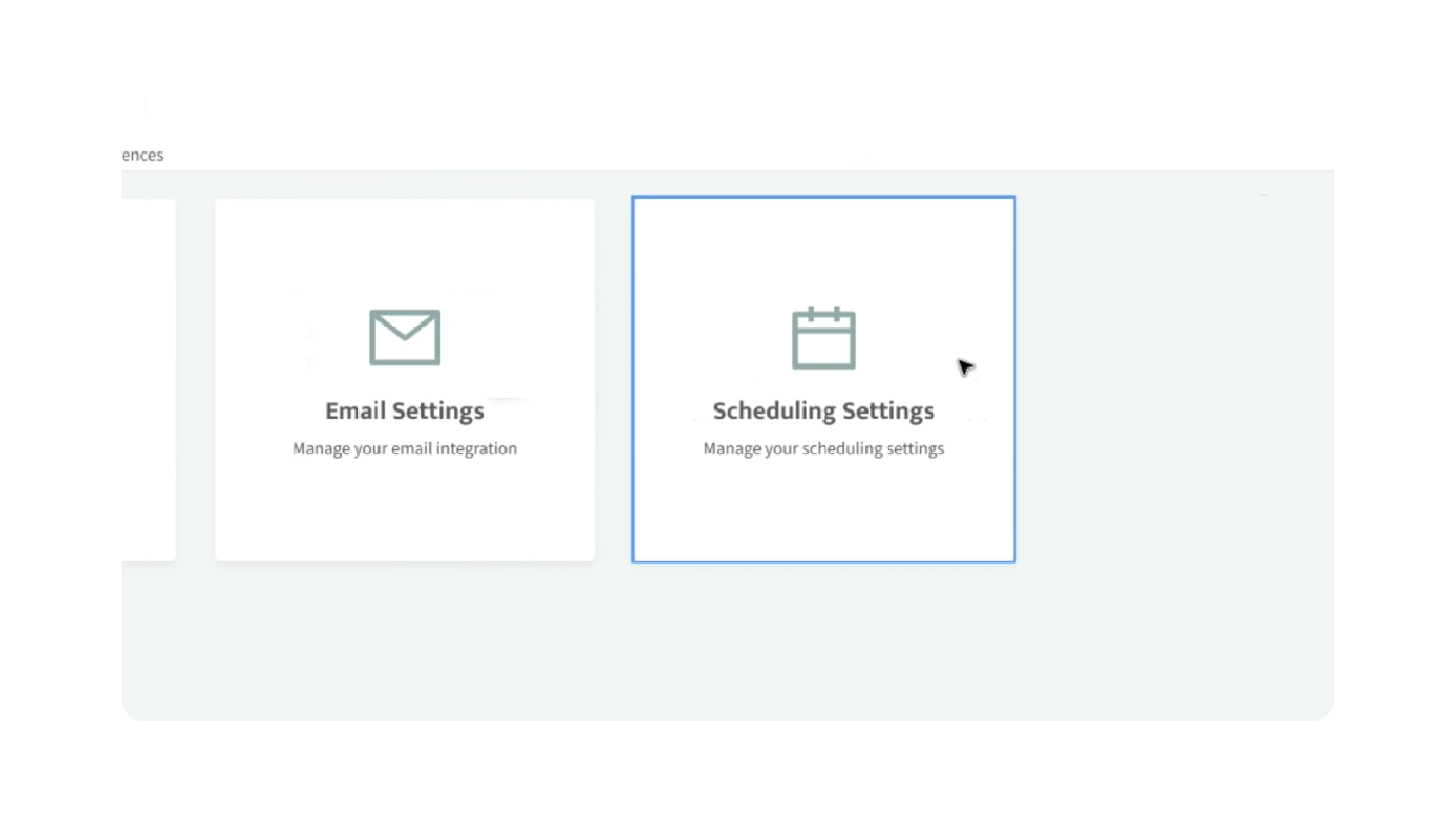
1. Access Scheduling Settings
Navigate to:
Profile Settings → Scheduling Settings
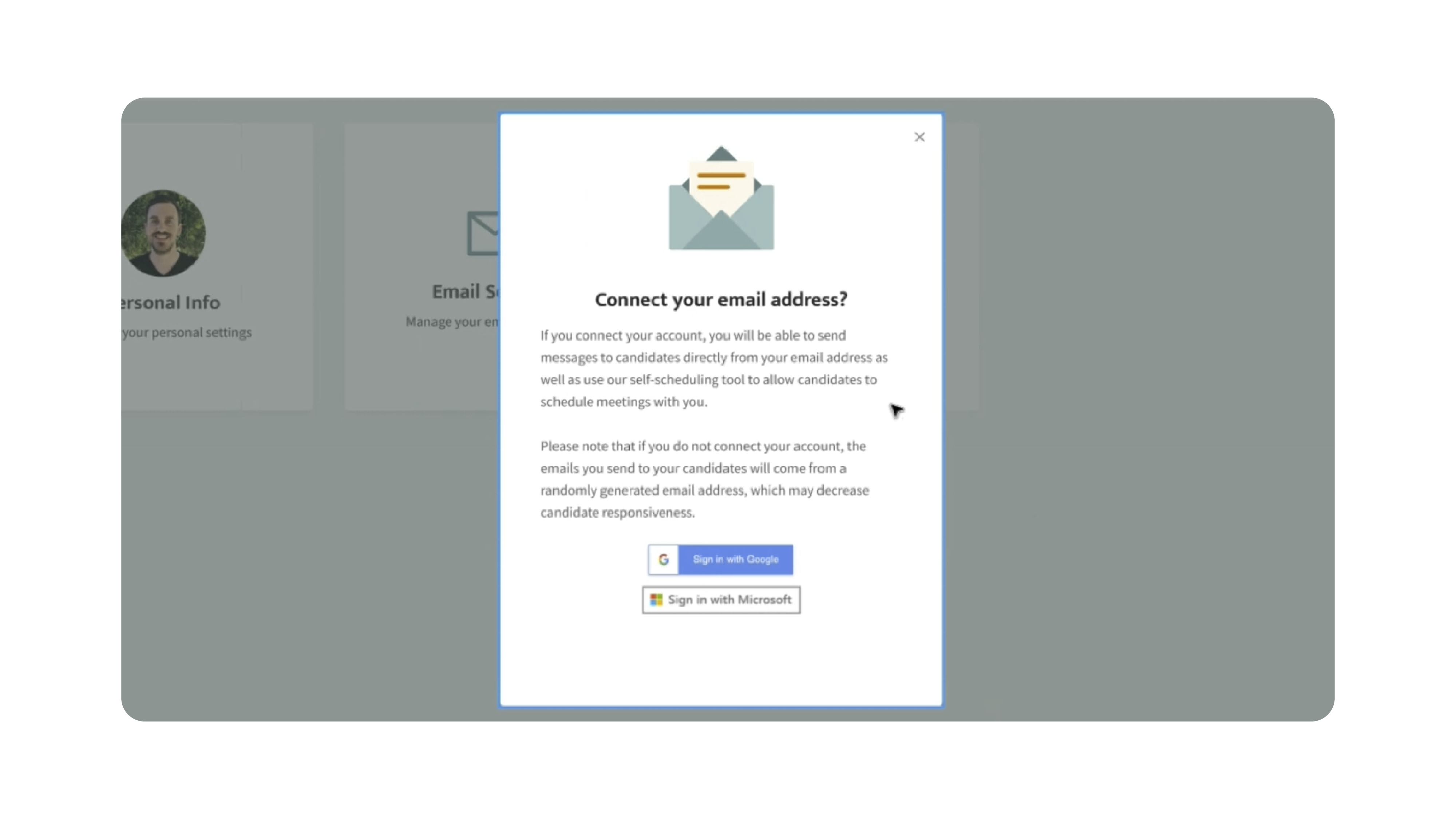
If your email/calendar is not connected yet, you will first be prompted to integrate:
- Microsoft
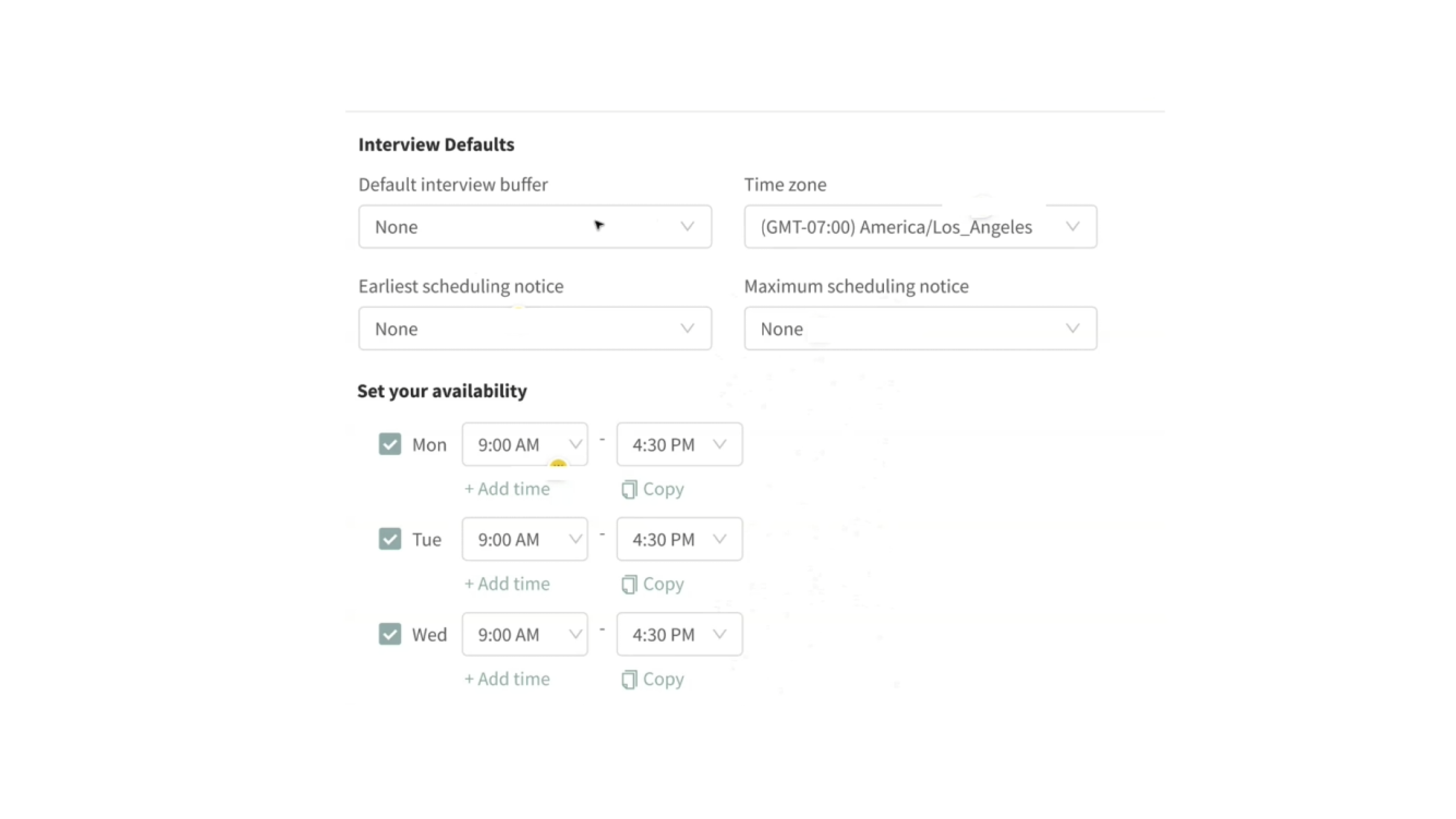
2. Configure General Availability
Inside General Settings, configure:
- Time zone
- Interview buffers
- Earliest scheduling notice
- Maximum booking window
- Weekly availability hours
You can also:
- Create multiple availability windows in one day
- Copy schedules across multiple days
Example:
- 9:00 AM – 12:00 PM
- 1:00 PM – 4:30 PM
3. Create Scheduling Links
Inside Scheduling Links:
- Click Create Scheduling Link
- Select an interview type:
- Phone Interview
- Video Interview
- In-Person Interview
- Group Interview
You can create multiple scheduling links for different recruiting workflows.
Each link can include:
- Meeting duration
- Interview location
- Guests/interviewers
- Interview descriptions
- Calendar integrations
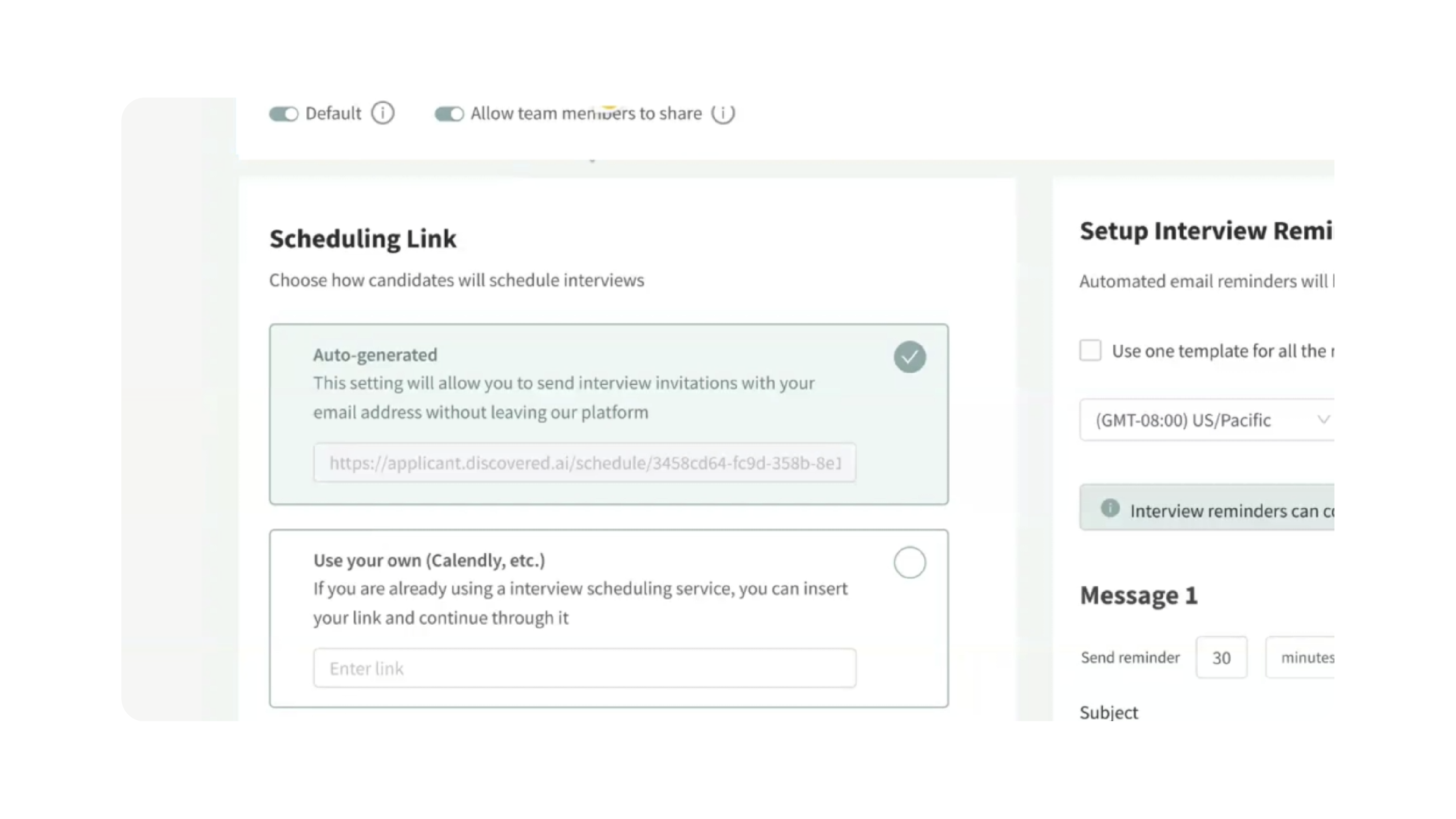
Also you can allow team members to share scheduling links.
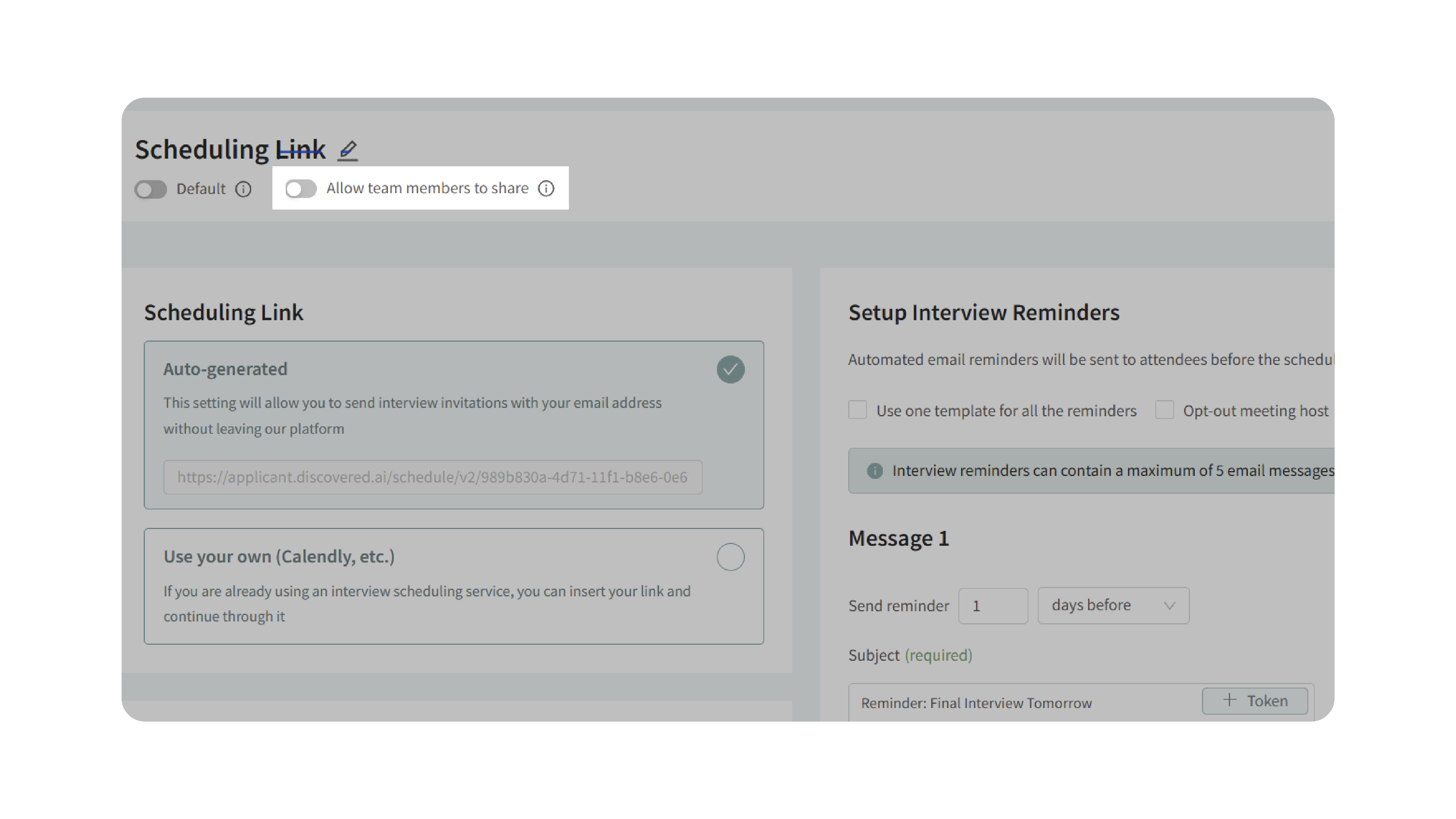
4. Configure Interview Reminders
The new scheduling system supports automated reminders via:
- SMS
You can configure reminders:
- Minutes before interviews
- Hours before interviews
- Days before interviews
- Weeks before interviews
Reminders automatically update if interviews are rescheduled.
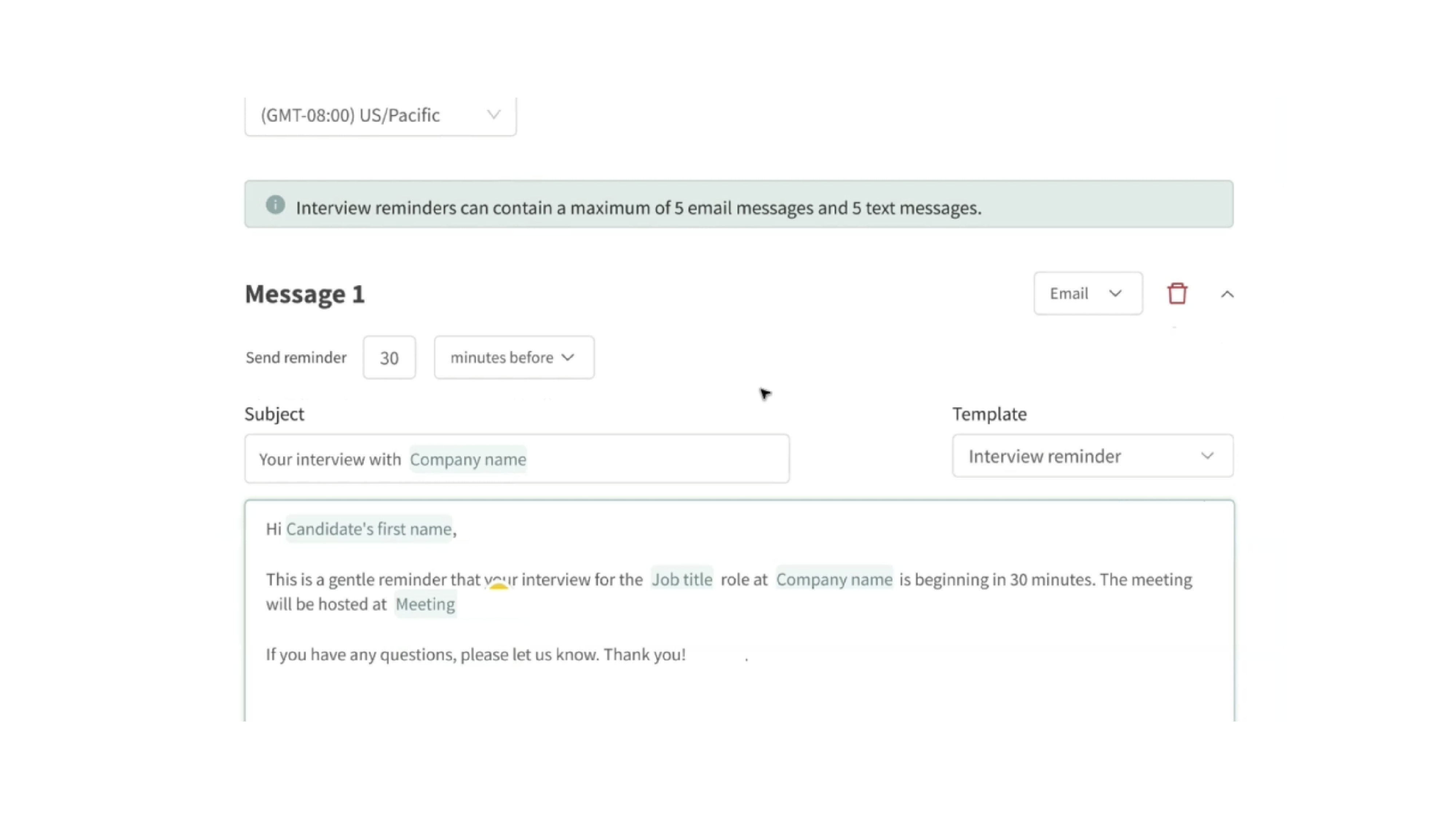
5. Add a Scheduling Link to a Sequence (Optional)
- Open a sequence, automation message, or scheduling communication
- Inside the message editor, click + Token
- Expand the Scheduling Links section
- Select the scheduling link you want to insert into the message
The selected scheduling link will automatically be embedded into the message sent to candidates.
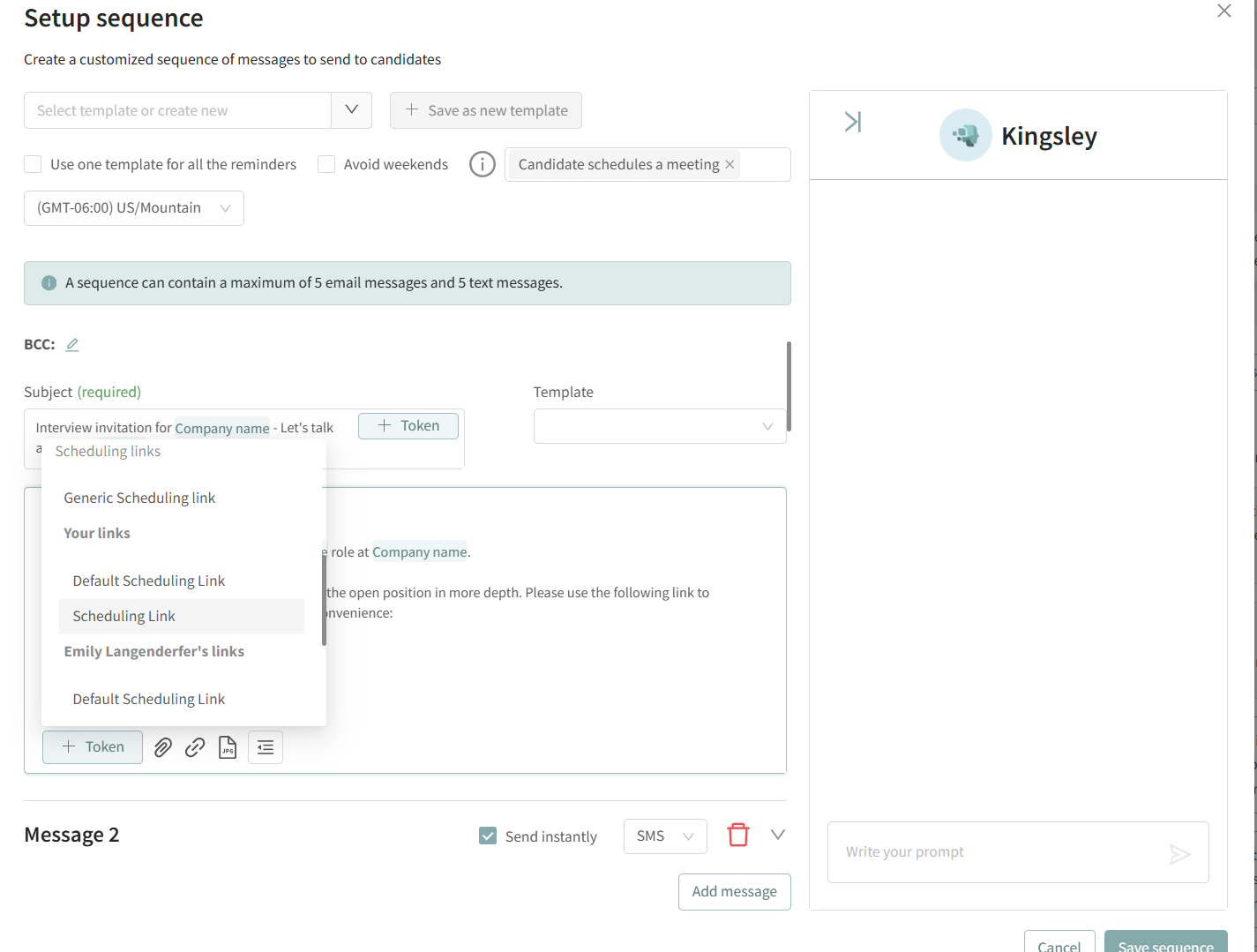
Note: Shared scheduling links only appear if another user has enabled visibility sharing for their scheduling links. Users must be on the new scheduling system to access this feature. If no shared links appear, it may mean no other users have granted access to their scheduling links yet.
6. Connect Meeting Platforms
Under Integrations, connect:
- Microsoft Teams
- Google Meet
Once connected, Discovered can automatically generate:
- Meeting links
- Join instructions
- Video conference details
These are inserted directly into interview invitations.
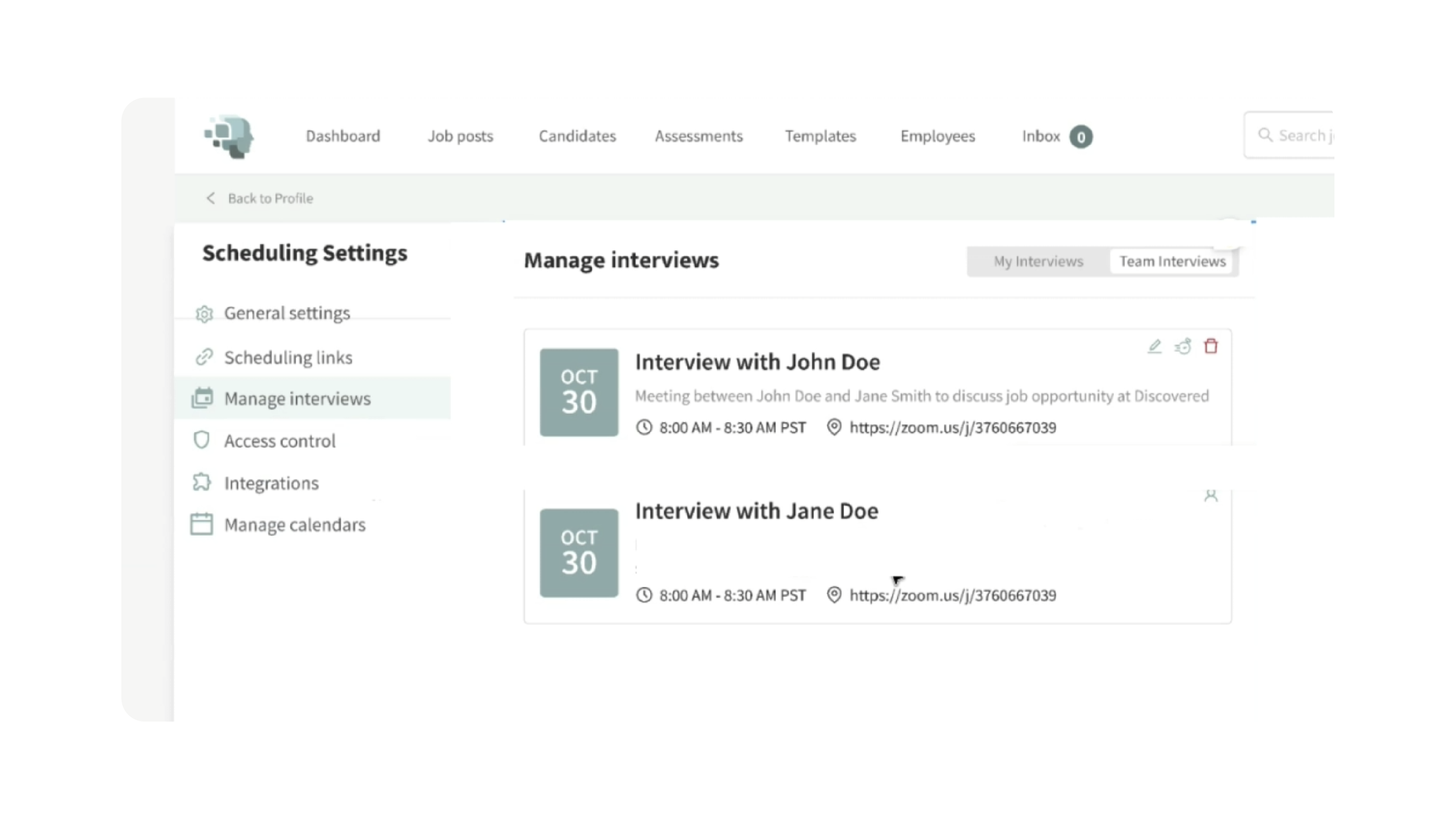
7. Manage Interviews
Inside Manage Interviews, users can:
- View upcoming interviews
- Filter personal or team interviews
- Edit interviews
- Cancel interviews
- Modify reminders
- Reschedule meetings
Team interviews allow recruiters to see interviews booked with other users assigned to the same job.
Group Interviews (New Version Only)
The new scheduling system supports group interview scheduling where multiple candidates can book the same session.
Instead of selecting from general availability, candidates choose from predefined group interview sessions.
Features include:
- Maximum attendee limits
- Shared interview sessions
- Candidate self-scheduling
- Session rescheduling
- Candidate withdrawal options
This is ideal for:
- Hiring events
- Campus recruiting
- High-volume interviews
- Group information sessions
Scheduling Tokens & Automations (New Version Only)
Scheduling links can be inserted dynamically into:
- Email templates
- Automations
- Workflow messages
Options include:
- Sender’s default scheduling link
- Specific interview links
- Shared team scheduling links
This allows automations to personalize interview scheduling automatically depending on who sends the message.
Why This Matters
Discovered’s scheduling tools reduce scheduling friction and improve candidate engagement by automating interview coordination.
This helps teams:
- Reduce manual scheduling work
- Eliminate back-and-forth emails
- Improve candidate experience
- Decrease interview no-shows
- Coordinate hiring teams more efficiently
- Scale interview scheduling across large pipelines
The new scheduling experience expands these capabilities even further with advanced automation, reminders, and team collaboration tools.
Use Cases
- Recruiters: Send scheduling links directly from workflow automations.
- Hiring Managers: Coordinate interview availability across teams.
- High-Volume Hiring: Run group interview sessions with multiple candidates.
- Distributed Teams: Use Teams, or Google Meet integrations for remote interviews.
- Recruiting Operations: Standardize scheduling workflows and reminders across hiring teams.
Best Practices
- Connect your calendar before configuring scheduling links
- Verify your time zone settings carefully
- Test scheduling links before sending them to candidates
- Use separate scheduling links for different interview types
- Configure reminders to reduce candidate no-shows
- For group interviews, clearly define attendee limits and session times
- Use scheduling tokens in automations for scalable workflows
What Happens Next
Once scheduling is configured:
- Candidates can self-schedule interviews
- Meetings sync automatically with your calendar
- Interview reminders send automatically
- Scheduling activity appears inside candidate profiles
- Hiring teams can coordinate interviews more efficiently
For users on the new scheduling system:
- Multiple scheduling links become available
- Group interview management is enabled
- Team interview visibility improves collaboration
- Automated reminders and integrations streamline scheduling even further
With Discovered Scheduling Settings, your hiring team can automate interview coordination, improve candidate experience, and scale recruiting operations more efficiently — whether you’re using the classic or redesigned scheduling system.