
Creating Offer Letter Templates
Overview
Offer letter templates allow your team to create reusable offer letter content for different roles, departments, or hiring processes.
Instead of writing each offer letter from scratch, you can create templates with standard language, signature settings, expiration rules, and offer-specific tokens. This helps keep offer letters consistent, reduces manual work, and makes it easier for users to send accurate offer documents from a job workflow.
Offer letter templates are managed from the Templates section in Discovered.
Creating an Offer Letter Template:
1. Open Offer Letter Templates
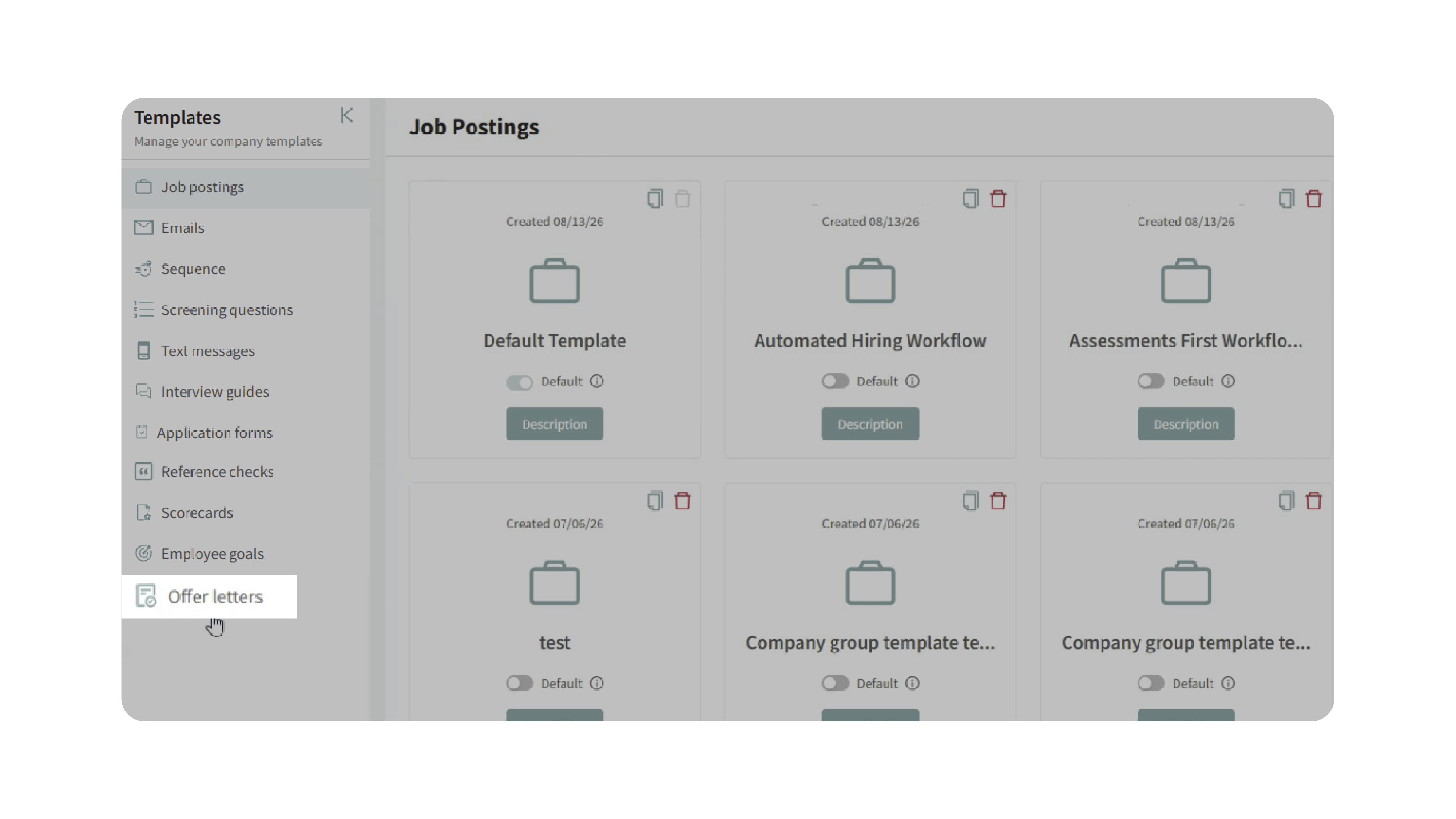
Go to Templates and select Offer Letters.
You may see a default offer letter template already available. You can edit an existing template or create a new one.
2. Create a New Template
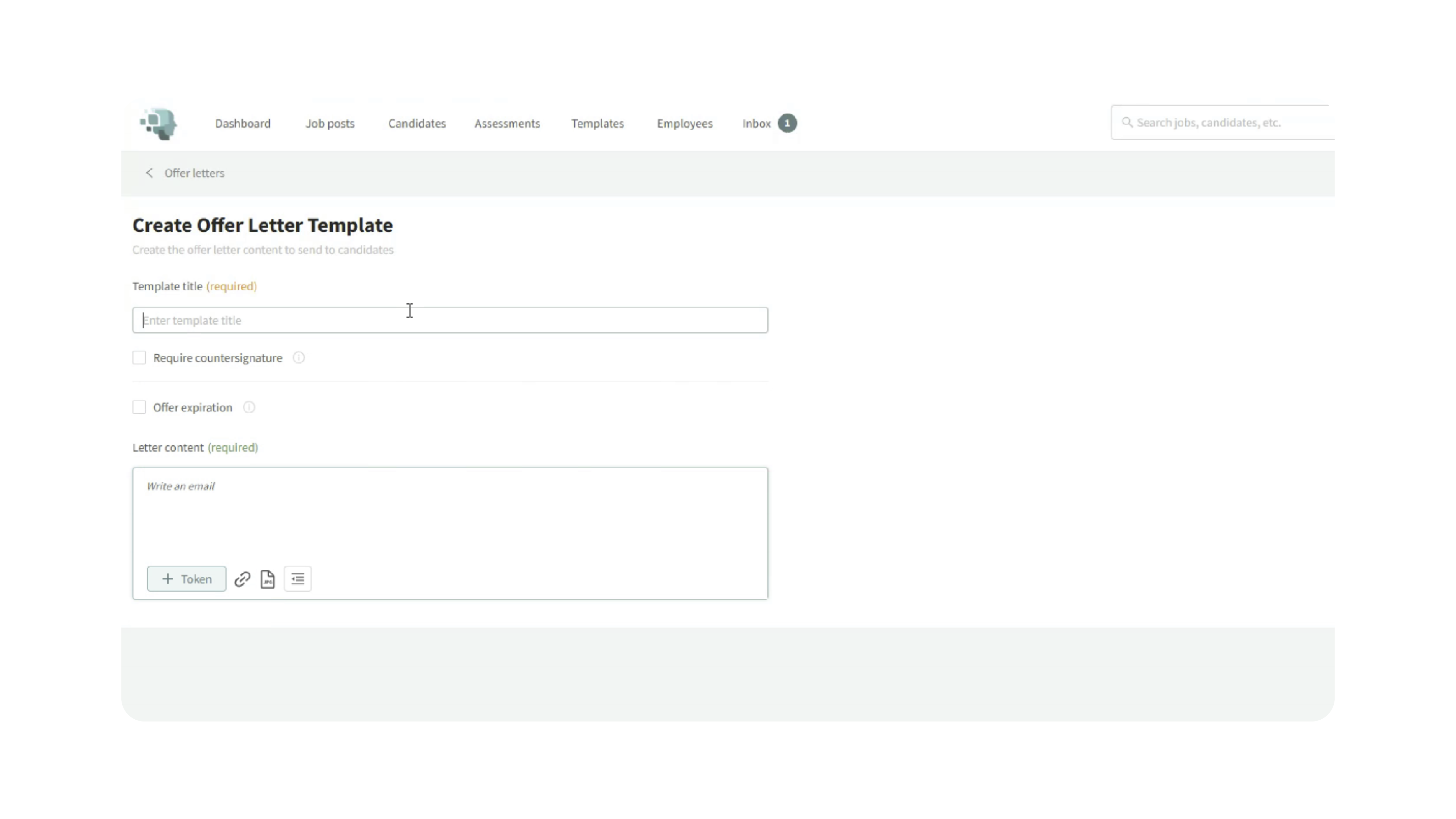
Click to create a new offer letter template.
Add a clear title so users can easily identify when to use the template.
For example:
- Accounting Offer Letter
- Hourly Employee Offer Letter
- Manager Offer Letter
- Seasonal Offer Letter
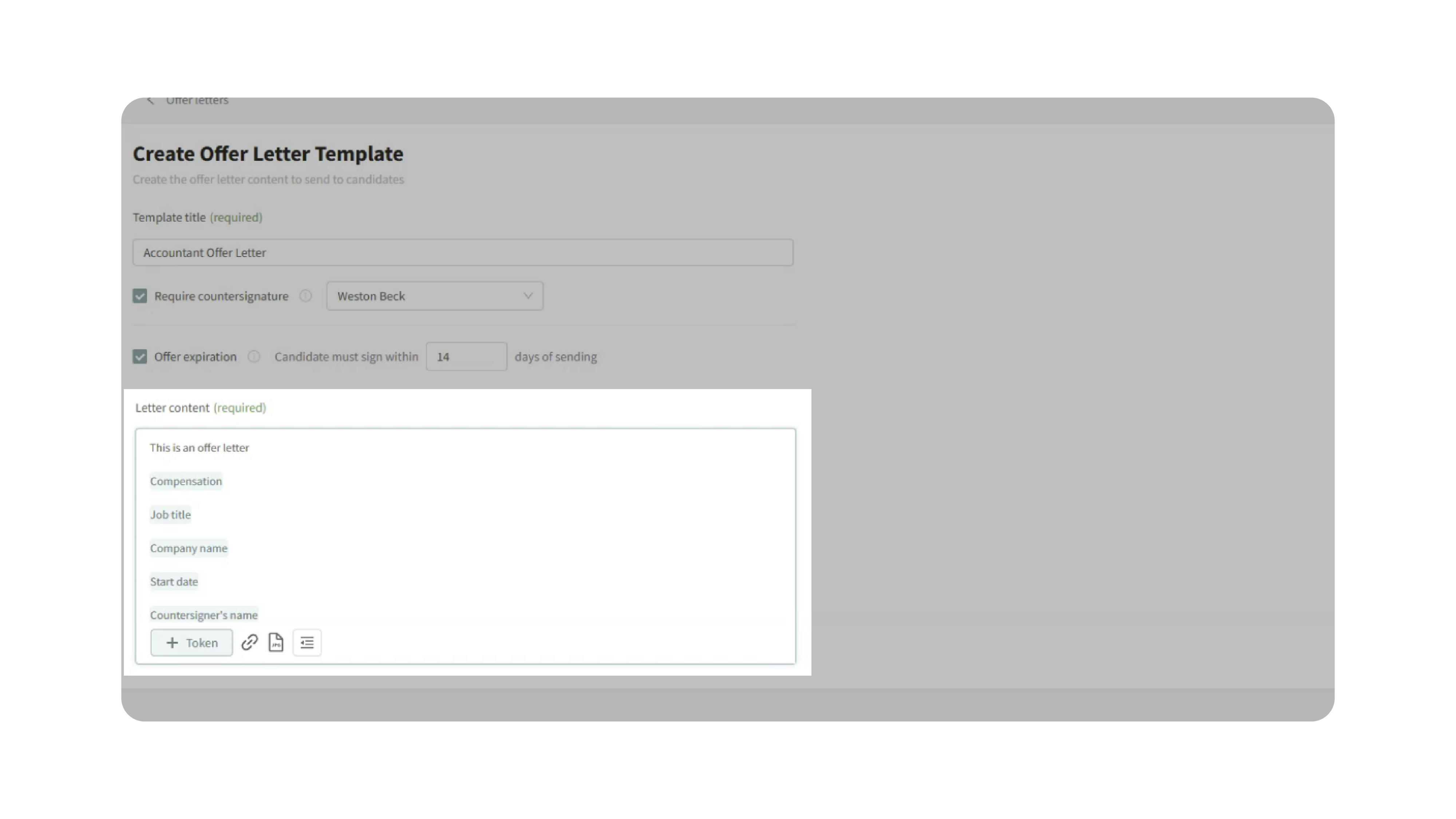
3. Configure Signature Settings
Offer letters are designed to be reviewed and signed by the candidate.
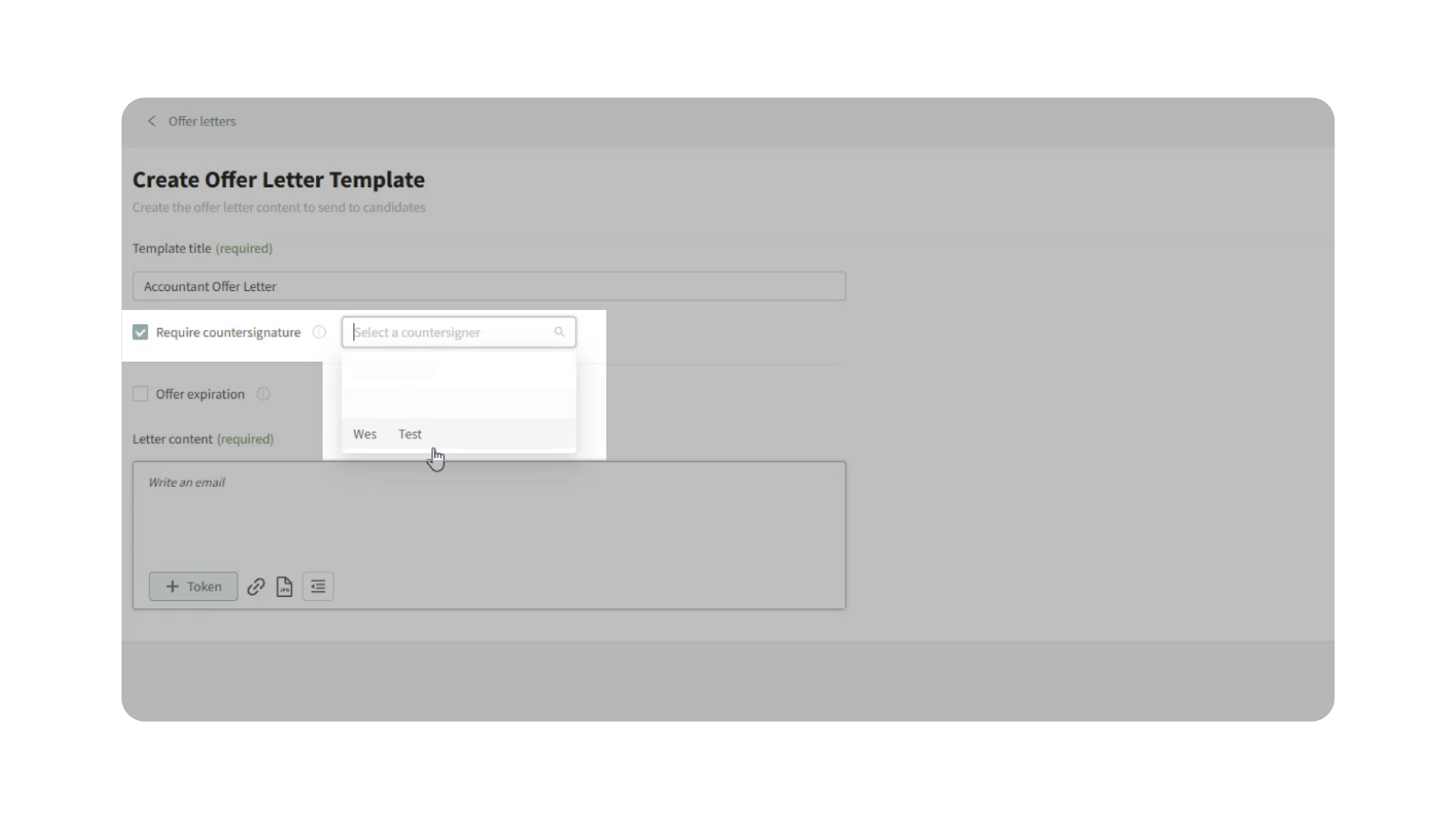
If your company also requires a company representative to sign the offer letter, enable the countersignature option and select the countersigner.
The countersigner must be a user in your Discovered account.
4. Set an Expiration Date
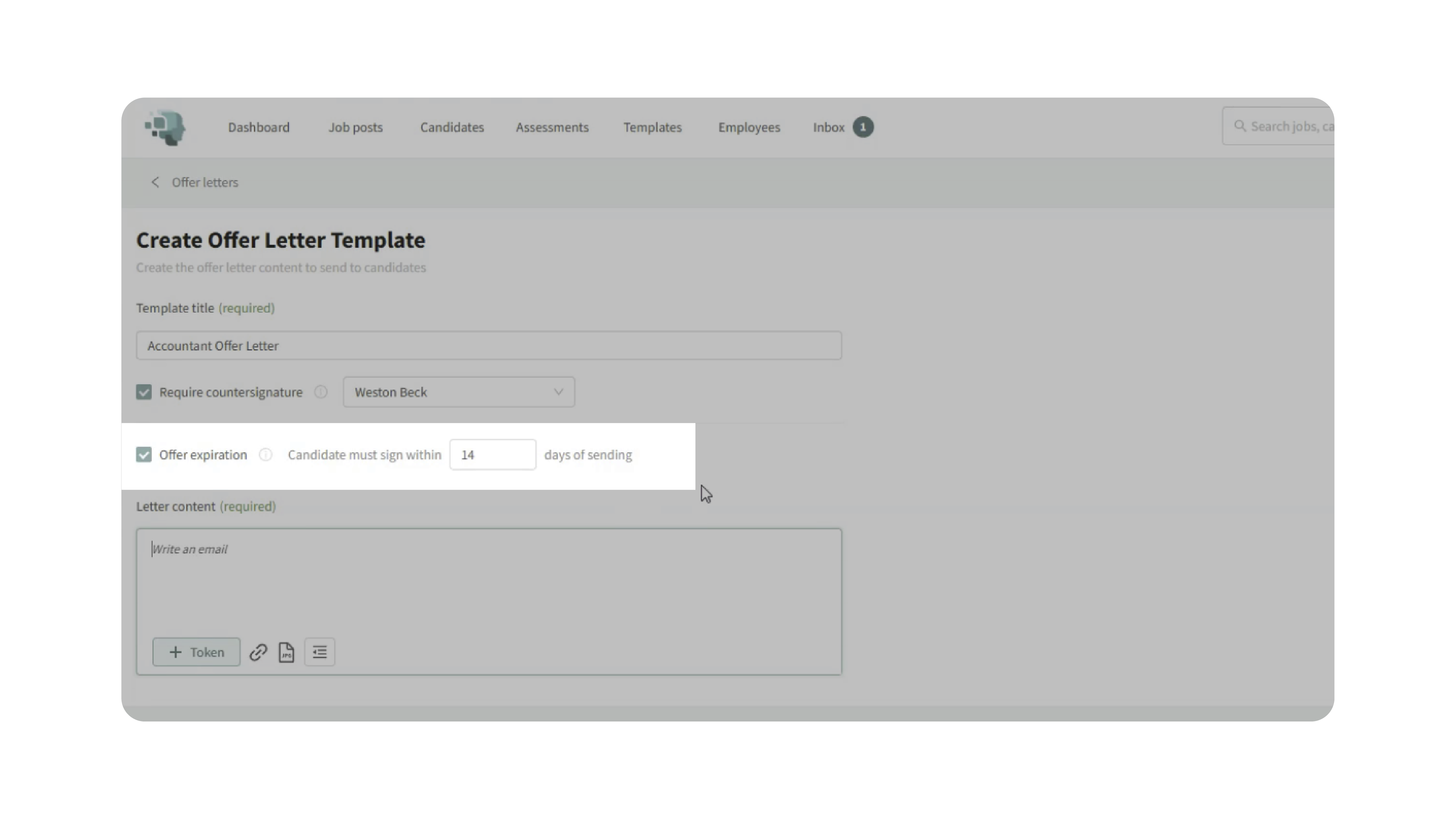
You can choose whether the offer letter expires.
If expiration is enabled, enter the number of days the candidate has to sign the offer letter.
For example, you may set the offer letter to expire after 14 days.
5. Add the Offer Letter Content
Add the content you want included in the offer letter.
You can write the letter directly in the editor and include offer letter tokens to personalize the document.
Common offer letter tokens may include:
- Compensation
- Job Title
- Company Name
- Start Date
- Countersigner Name
Some tokens, such as compensation, start date, and countersigner name, are especially useful because they may vary by candidate or offer.
6. Save the Template
After the template title, signature settings, expiration settings, and letter content are complete, click Save.
The template can now be selected when adding an offer letter to a job workflow.
Why This Matters
Offer letter templates help teams keep employment offers consistent and easier to manage.
By creating reusable templates, your team can reduce manual writing, avoid missing important offer details, and make sure offer letters are ready to use when candidates reach the offer stage.
Use Cases
Use offer letter templates when you need to:
- Create reusable offer letters for common roles
- Standardize offer language across your team
- Include role-specific or compensation-related details
- Require candidate signatures
- Require a company countersignature
- Set signing deadlines for offers
- Save time when sending offers from job workflows
Best Practices
- Create separate templates for different offer types or roles.
- Use clear template names so users can choose the correct one.
- Include relevant tokens such as compensation, job title, company name, start date, and countersigner name.
- Review template language before making it available to your team.
- Assign the correct countersigner when a countersignature is required.
- Use expiration dates when offers need to be accepted within a specific timeframe.
What Happens Next
After an offer letter template is saved, it can be selected when adding an offer letter to a job workflow.
Once the template is attached to a status automation, candidates can receive the offer letter when they reach the selected status.