
Managing Candidate Offer Letters
Overview
Once an offer letter has been sent, Discovered allows users to manage the offer directly from the candidate profile.
This helps recruiting teams track offer progress without leaving the candidate record. Users can see when the offer letter was created and sent, review its current status, open or download the document, countersign when needed, and revoke the offer if necessary.
Managing offer letters from the candidate profile keeps the final stage of the hiring process organized and gives your team one place to review offer activity.
Managing Candidate Offer Letters:
Viewing an Offer Letter
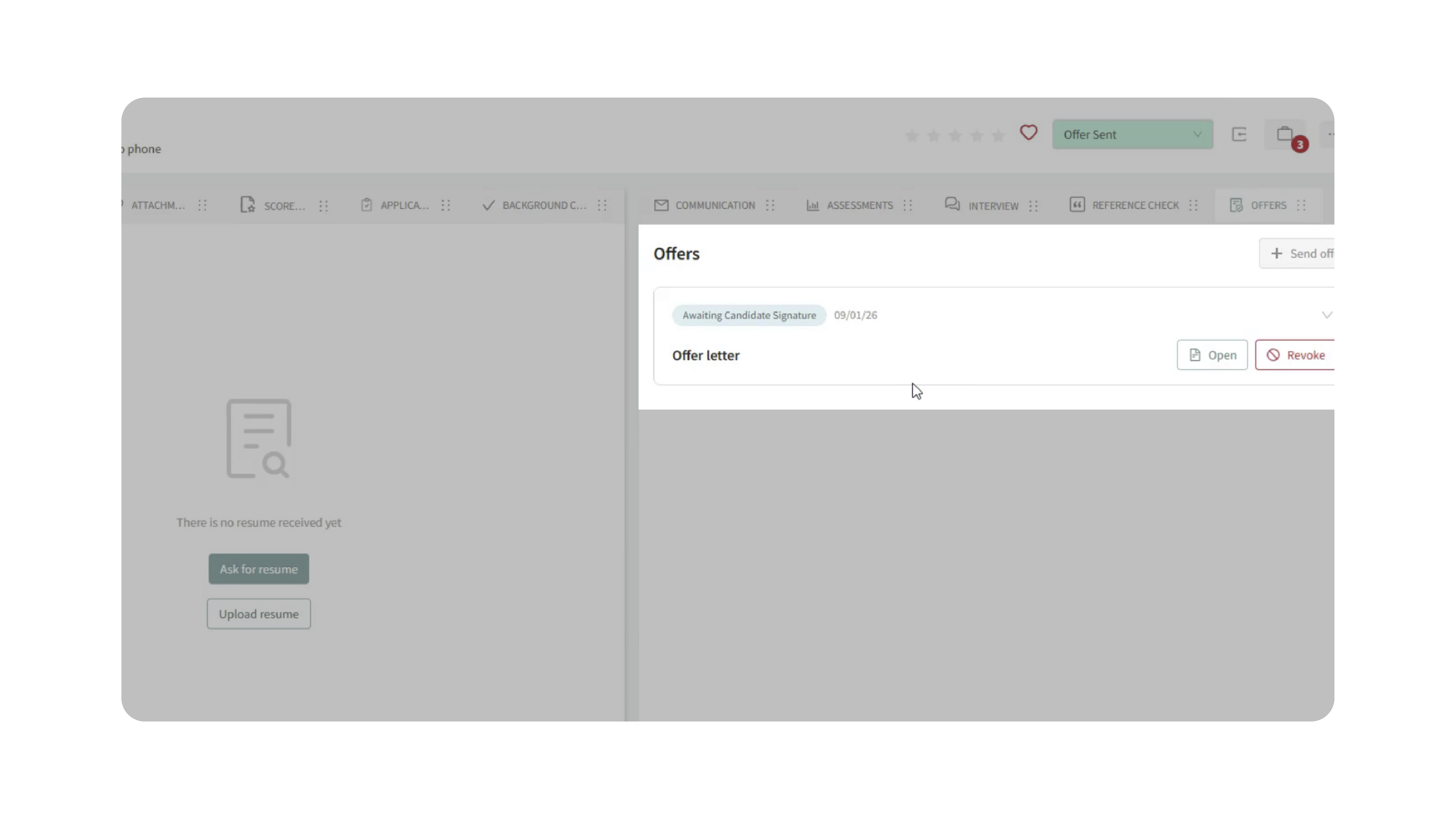
Open the candidate profile and find the offer letter section or activity related to the offer.
From the candidate profile, users can see the offer letter status and open the document to review it.
Before the candidate signs, the offer letter may be available for review, but it is not the final completed version.
Candidate Signing Experience
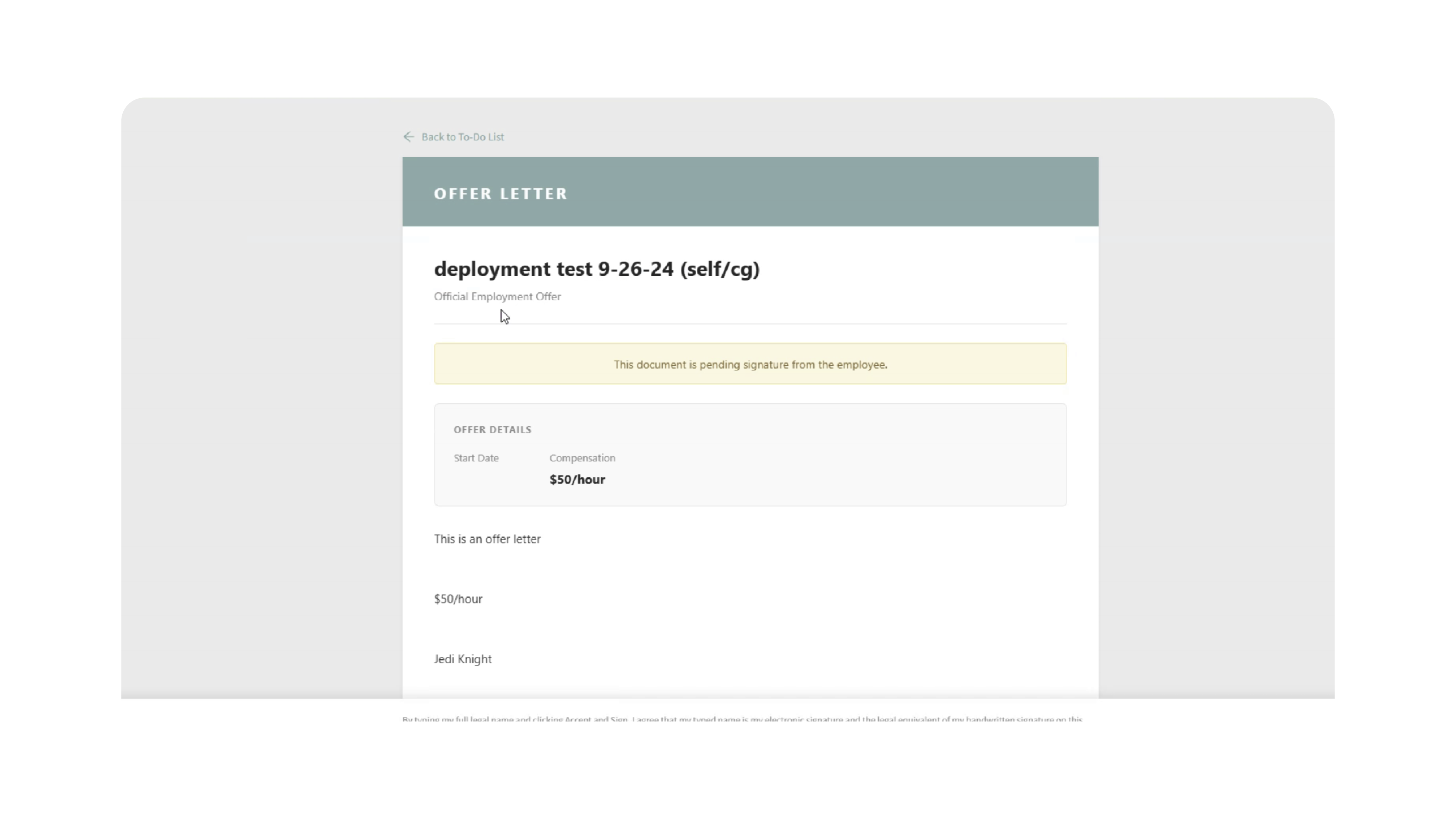
When the candidate opens the offer letter link, they can review the offer details.
The candidate may see information such as:
- Company name
- Job title
- Compensation
- Start date
- Offer letter content
- Signature field
If the candidate agrees to the offer, they can type their name and sign the document.
The candidate may also have the option to decline the offer.
Countersigning an Offer Letter
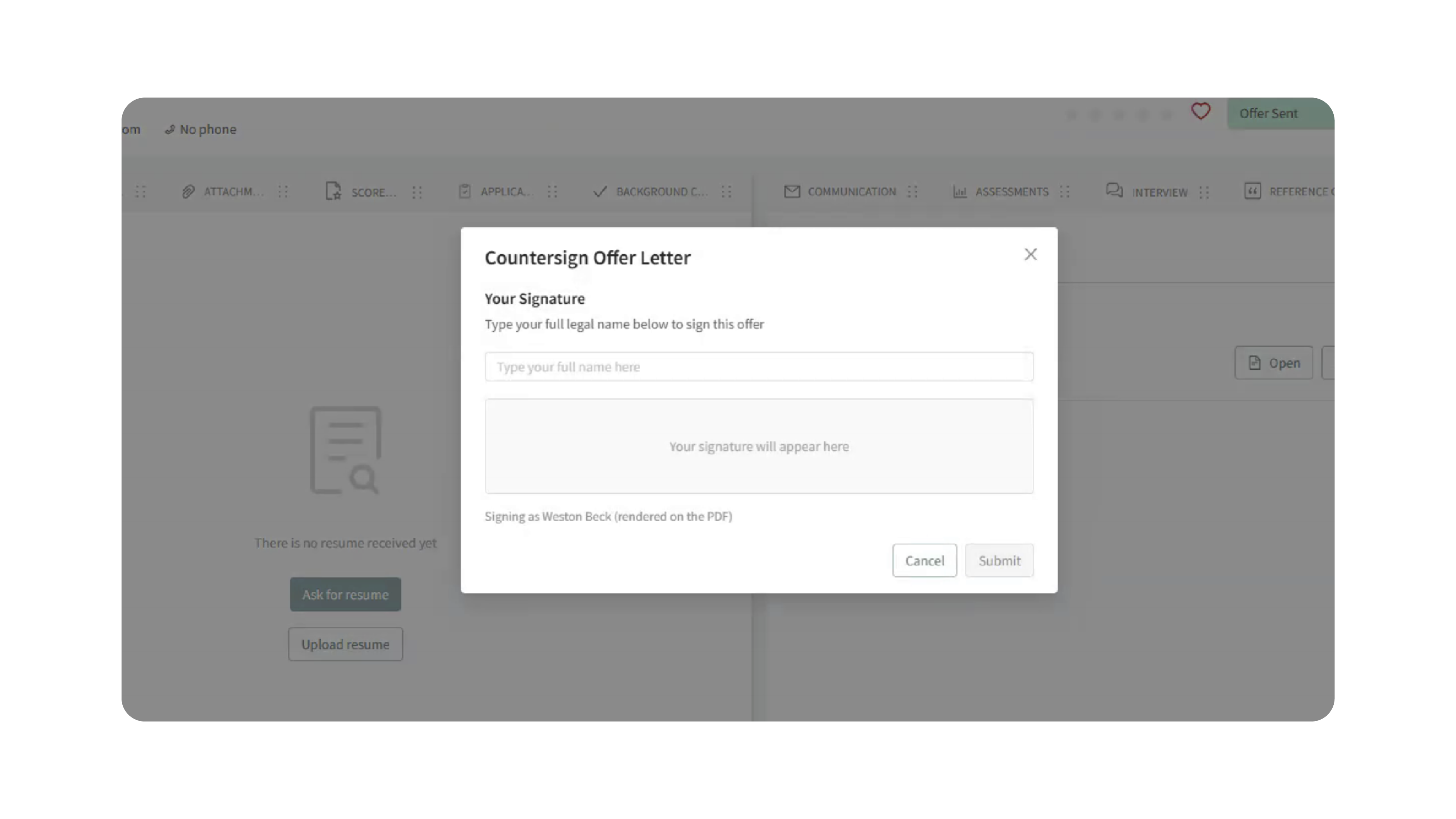
If the offer letter requires a countersignature, the assigned countersigner can complete the signature after the candidate signs.
The countersigner can open the candidate profile, review the offer letter, and submit their countersignature.
Once the countersignature is submitted, the offer letter is completed.
Viewing and Downloading the Completed Offer Letter
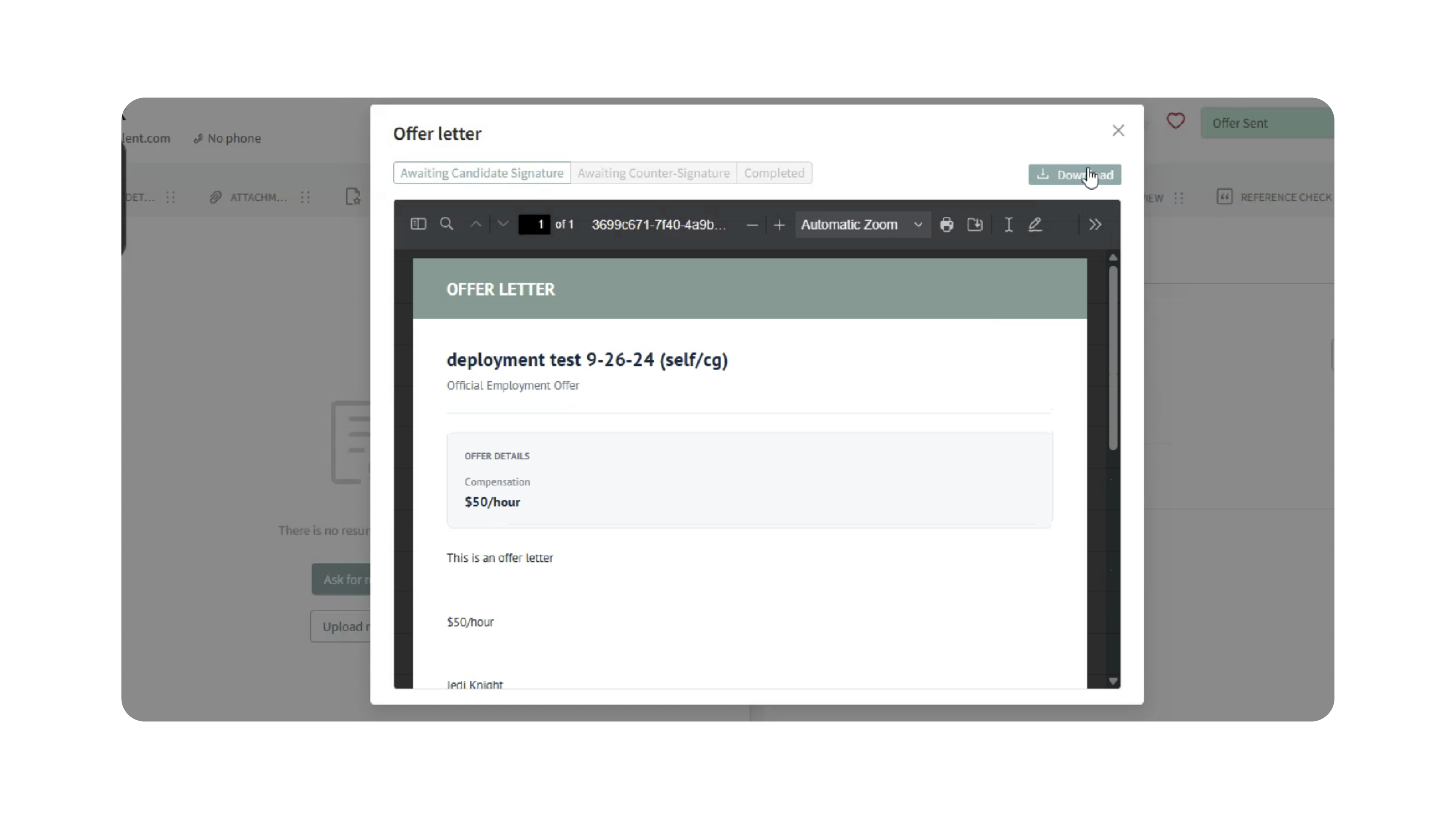
After all required signatures are complete, the final offer letter can be opened and downloaded.
Both the candidate and the user can access the completed version with signatures included.
Tracking Offer Letter Status
Offer letters can move through different states depending on candidate and user actions.
Common states may include:
- Created
- Sent
- Pending candidate signature
- Pending countersignature
- Completed
- Declined
- Revoked
- Expired
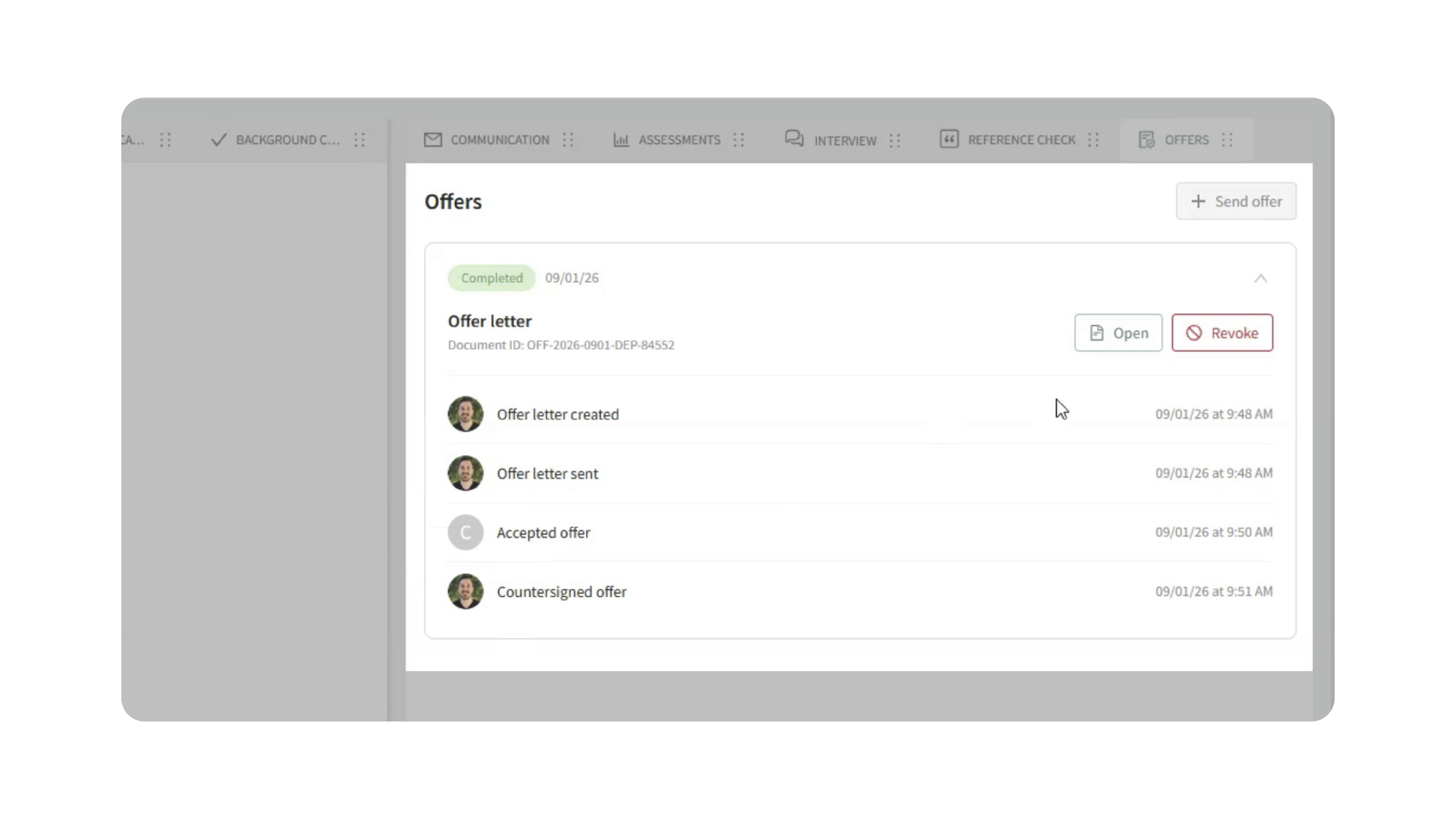
The candidate profile shows offer letter activity, such as when the offer was created, sent, accepted, or countersigned.
Revoking an Offer Letter
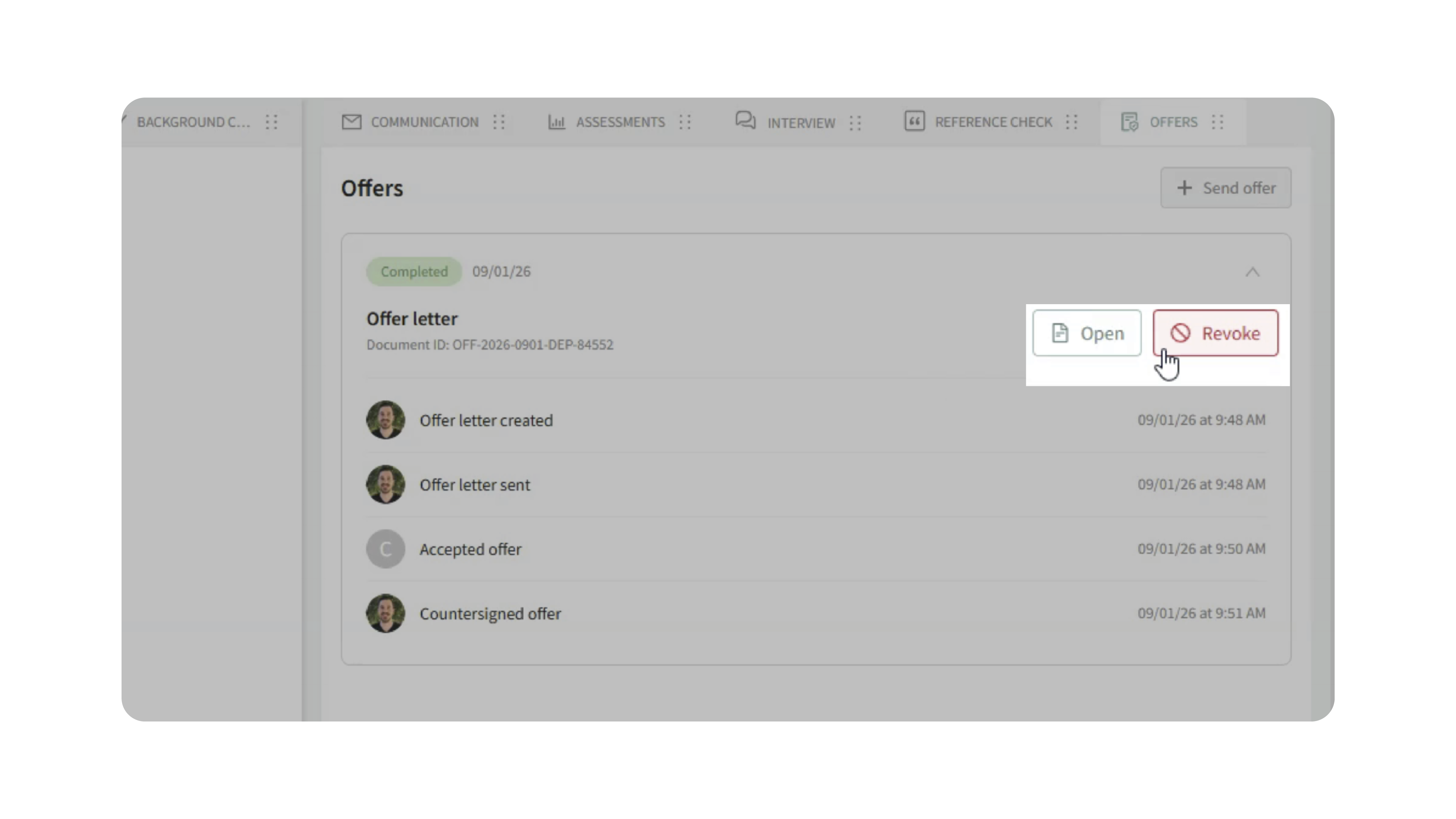
Users can revoke an offer letter if the offer needs to be withdrawn.
This option may be available before or after signatures are completed.
Use this carefully, especially if the offer letter has already been signed or countersigned.
Notifications
Users may receive notifications when action is needed on an offer letter, such as when a candidate has signed and the document needs to be countersigned.
The candidate will be able to see the offer letter status from the offer letter link, including whether the document is still pending or completed.
Why This Matters
Managing offer letters from the candidate profile helps teams keep the offer process connected to the candidate record.
Recruiters, hiring managers, and countersigners can review offer status, complete required actions, and access signed documents without tracking separate files or manual updates outside Discovered.
Use Cases
Use candidate offer letter management when you need to:
- Confirm whether a candidate has received an offer
- Review whether the candidate has signed
- Countersign an offer letter
- Download a completed signed offer
- Track offer activity from the candidate profile
- Revoke an offer if needed
- Review declined, expired, or pending offers
Best Practices
- Check the candidate profile to confirm the current offer status.
- Review the offer document before countersigning.
- Download the completed version only after all required signatures are complete.
- Use revocation carefully, especially after an offer has been signed.
- Follow up internally if an offer remains pending for too long.
- Make sure the correct countersigner is assigned before the offer is sent.
What Happens Next
After the candidate signs the offer letter, the status updates in Discovered.
If a countersignature is required, the assigned countersigner can complete the process from the candidate profile. Once all required signatures are complete, the final signed offer letter is available to open and download.