
Using the Discovered Gmail Add-On
Overview
The Discovered Gmail add-on helps recruiting teams keep candidate communication organized when applicants reply directly through Gmail.
Discovered already allows users to send candidate emails from their connected email address. The Gmail add-on extends that workflow by giving users a way to manually sync selected applicant replies from Gmail back into the candidate’s profile in Discovered.
This helps reduce manual copy-and-paste work, keeps candidate communication history more complete, and gives recruiters and hiring teams better visibility into conversations that happen outside the standard Discovered email flow.
The add-on only syncs messages that the user opens while the Discovered add-on is active. It does not automatically read, scan, or sync all emails in the user’s inbox.
→ Open the Discovered Gmail add-on in Google Workspace Marketplace:
https://workspace.google.com/marketplace/app/discovered/981798157416
Before You Begin
Before using the Gmail add-on, make sure:
- You have access to a Discovered account.
- You use Gmail for candidate communication.
- The Discovered Gmail add-on has been installed or opened from Google Workspace Marketplace.
- You have granted the required Google permissions.
- The applicant email you want to sync is available in Gmail.
- The candidate already exists in Discovered.
- Access to My Profile → Email Account in Discovered, where you can retrieve your Gmail Add-On Token if needed.
Note: The Gmail add-on is designed to sync selected applicant messages. It does not automatically sync your full Gmail inbox.
How the Gmail Add-On Works
When you open an applicant email in Gmail and launch the Discovered add-on, Discovered attempts to identify the matching candidate profile.
If the candidate is connected to more than one job in Discovered, you can choose which job the email should be associated with. Once synced, the message appears in the candidate profile inside Discovered.
This allows your team to keep applicant communication in one place, even when the message was received directly in Gmail.
Using the Discovered Gmail Add-On:
Installing or Opening the Gmail Add-On
1. Open the Discovered add-on in Google Workspace Marketplace
Go to the Discovered Gmail add-on listing in Google Workspace Marketplace.
→ Open the Discovered Gmail add-on in Google Workspace Marketplace:
https://workspace.google.com/marketplace/app/discovered/981798157416
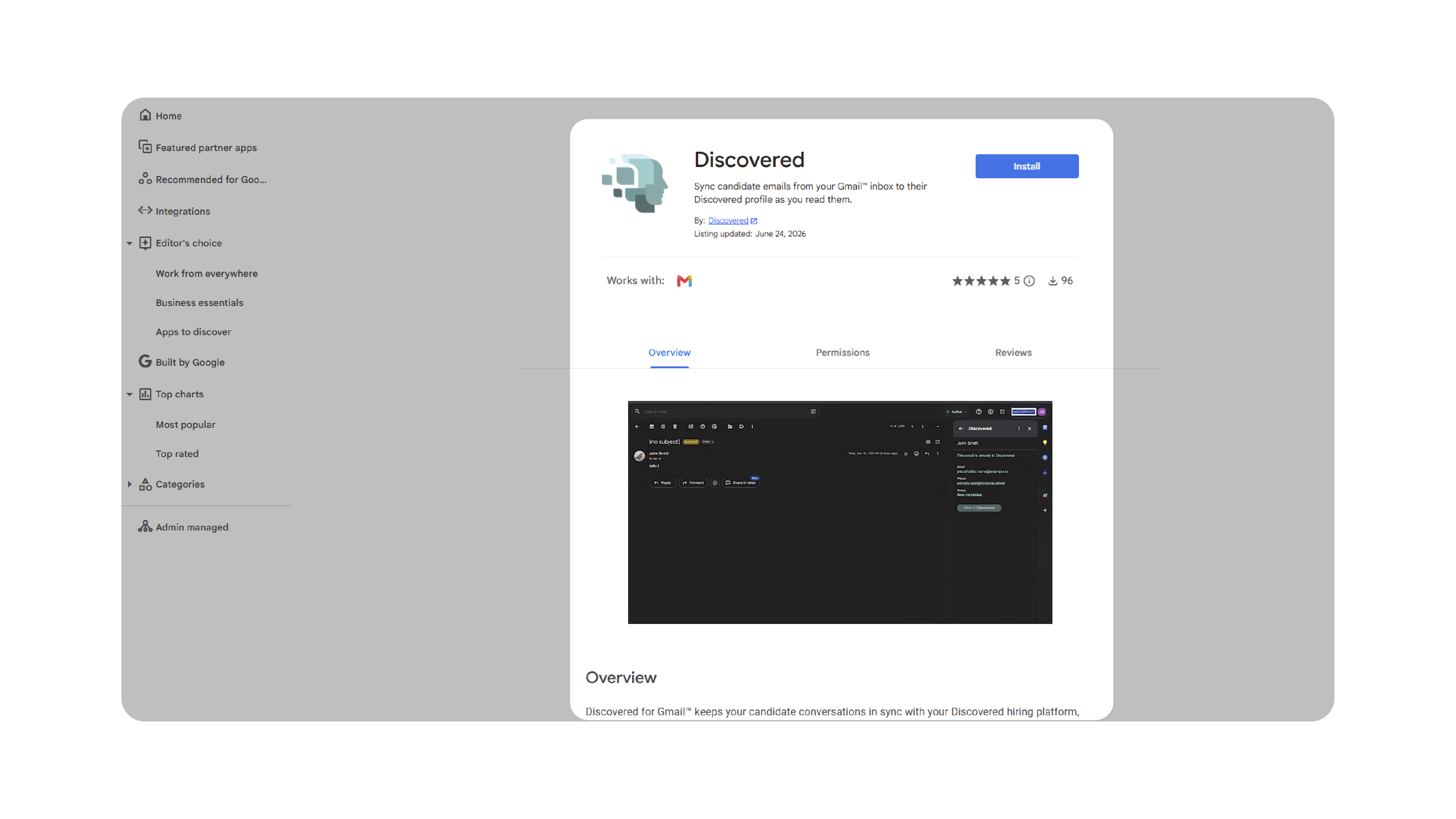
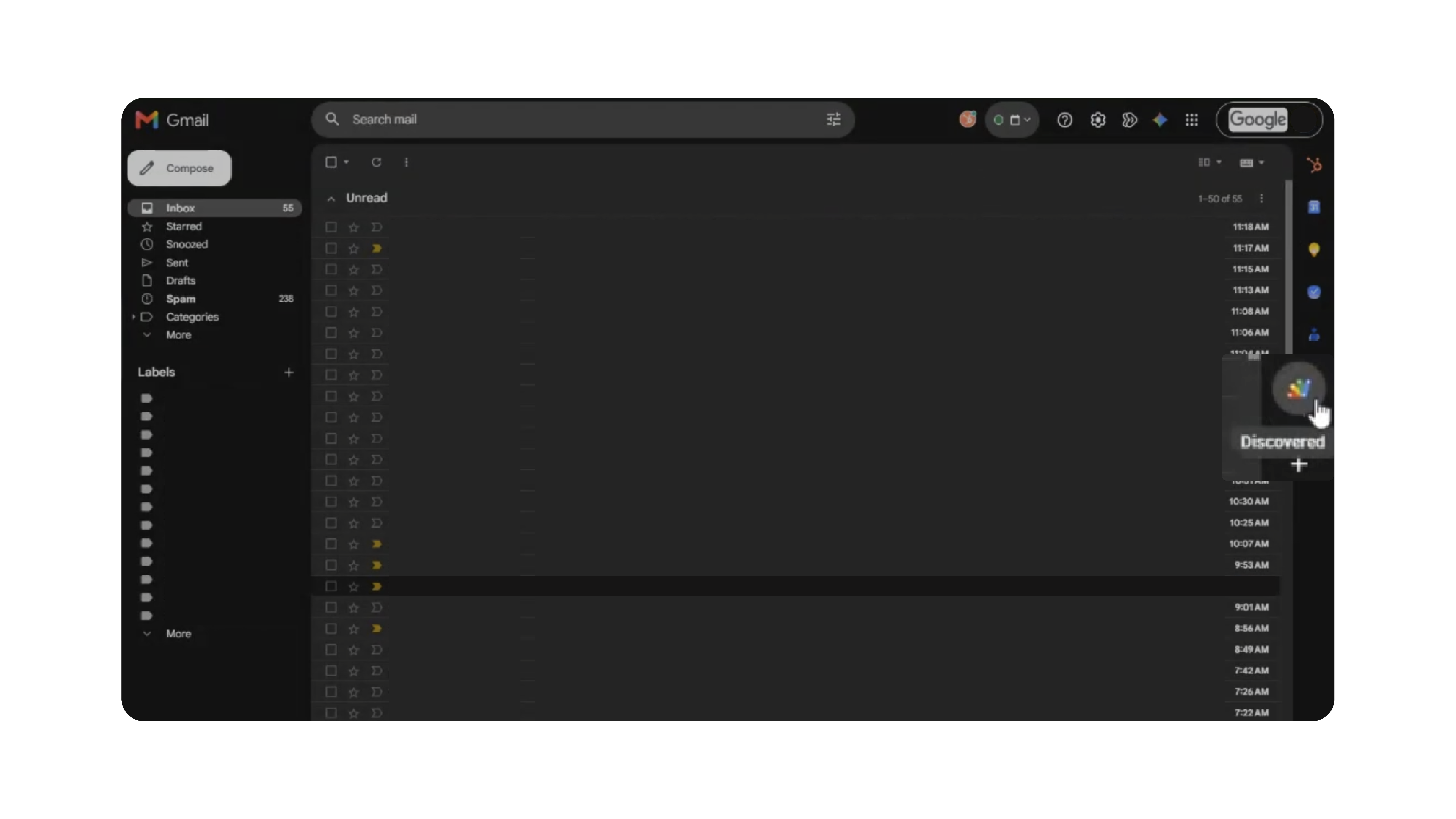
2. Install or open the add-on
Install or open the Discovered Gmail add-on from the Google Workspace Marketplace listing.
Once available, the add-on will appear in the Gmail side panel.
3. Grant the required permissions
Google may ask you to review and approve the permissions required for the add-on to work.
Review the requested permissions and continue.
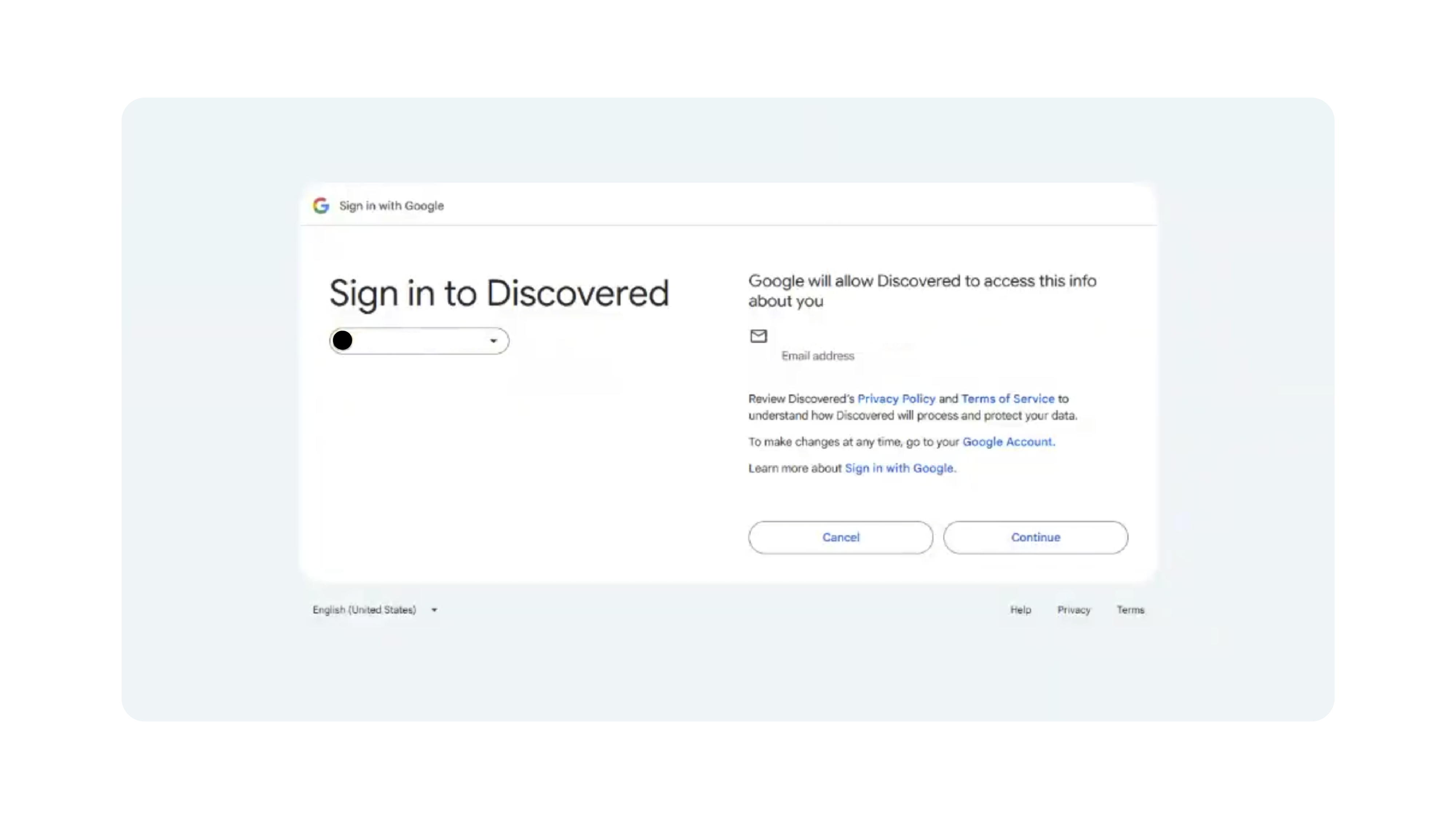
Note: Discovered uses the permissions needed to sync selected Gmail messages into the applicant tracking system. The add-on only syncs messages that the user opens while the add-on is active.
Locate Your Gmail Add-On Token
When you open the add-on for the first time, you may be asked to save connection details for your Discovered account. This connection allows the Gmail add-on to match opened Gmail messages to candidate profiles in Discovered.
If the Gmail Add-On does not automatically provide your connection token during setup, you can retrieve it directly from your Discovered account.
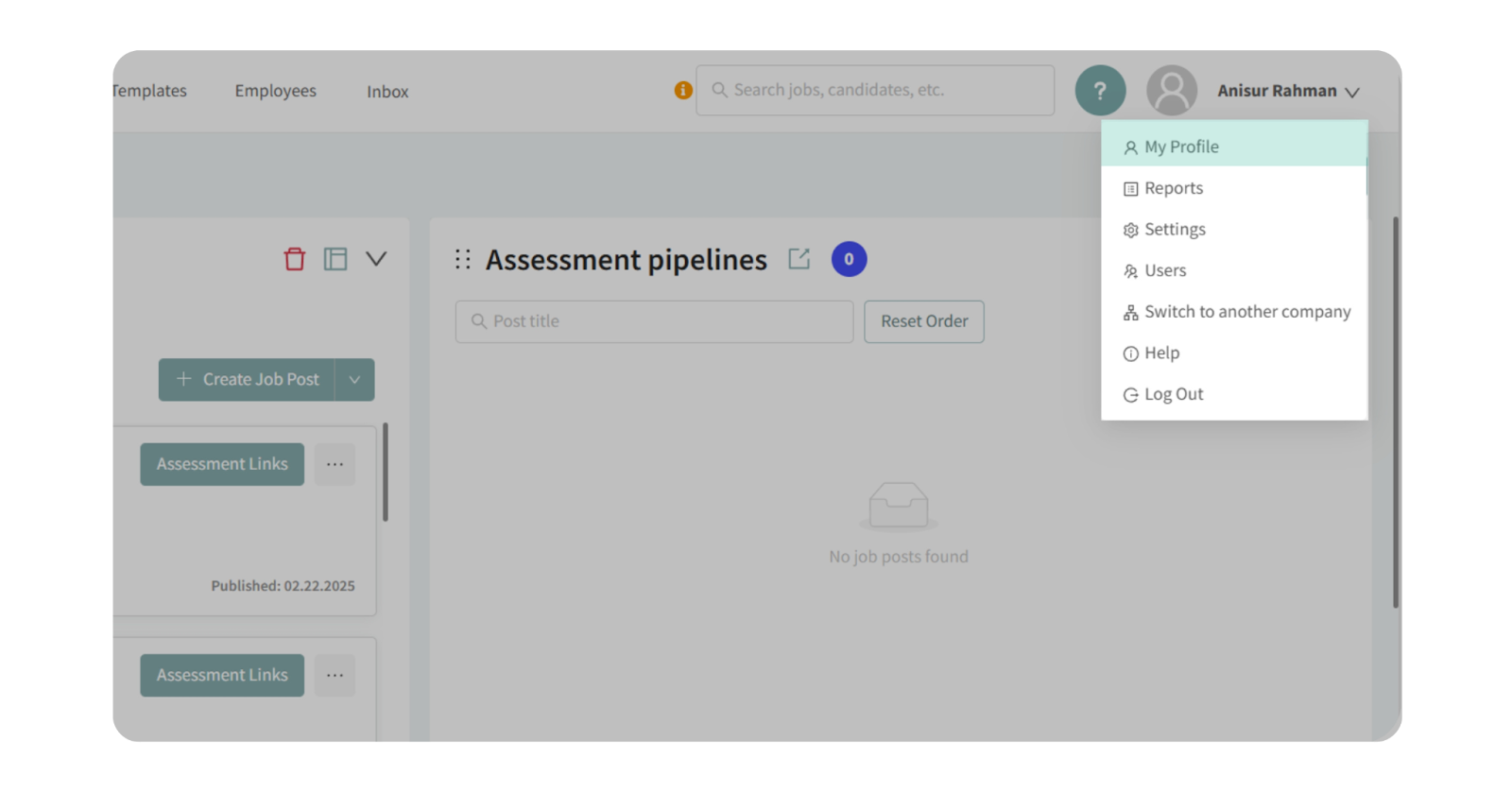
1. Log in to your Discovered account, click your profile menu in the top-right corner and Open My Profile.
2. Locate the Email Account card. Find the Gmail Add-On Token and copy the token.
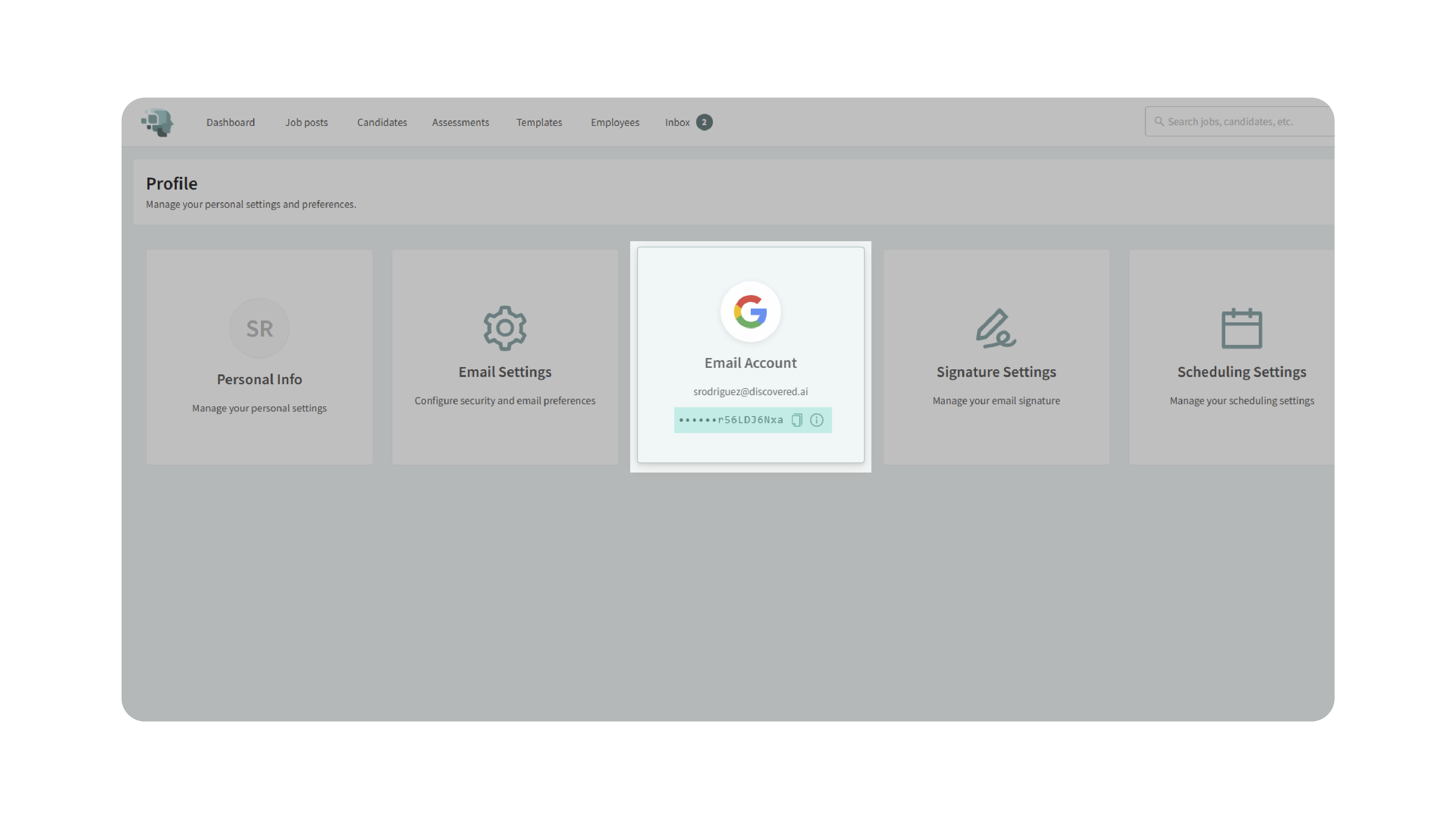
3. Return to Gmail, open the Discovered Gmail Add-On, paste the token into the corresponding Token field and Click Save.
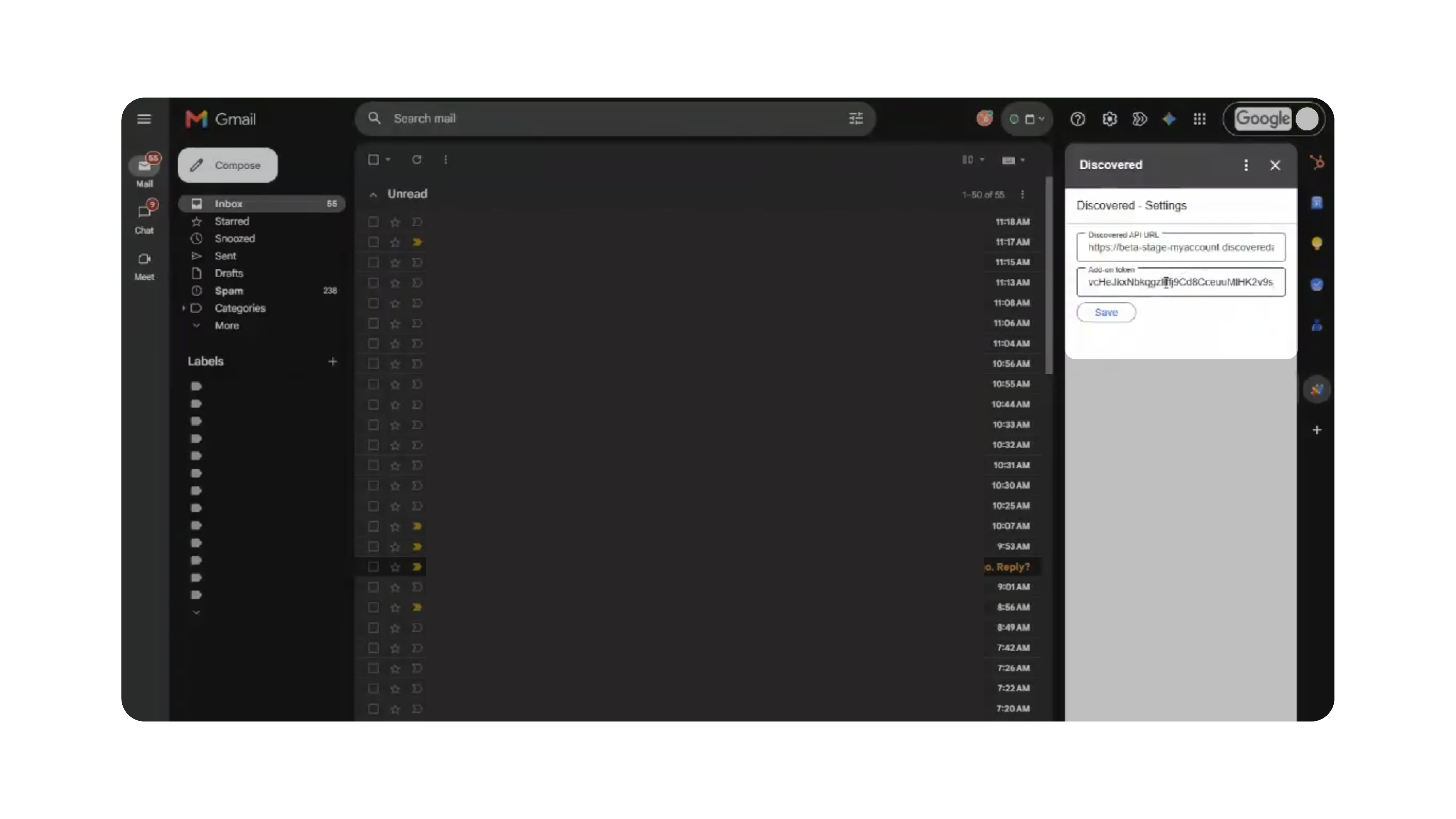
Once saved, the Gmail Add-On will be connected to your Discovered account and ready to use.
Important: Your Gmail Add-On Token is private account information. Do not share it or include it in public screenshots or recordings.
Syncing a Gmail Message to Discovered
1. Open Gmail
Go to Gmail and open the inbox you use for candidate communication.
2. Open the applicant email
Open the applicant email message you want to sync into Discovered.
The add-on only works with the email currently opened by the user while the add-on is active.
3. Launch the Discovered add-on
From the Gmail side panel, open the Discovered add-on.
Discovered will attempt to identify the matching candidate profile based on the opened email.
4. Confirm the candidate profile
If Discovered finds a matching candidate, review the candidate information shown in the add-on.
Make sure the message is being matched to the correct candidate before continuing.
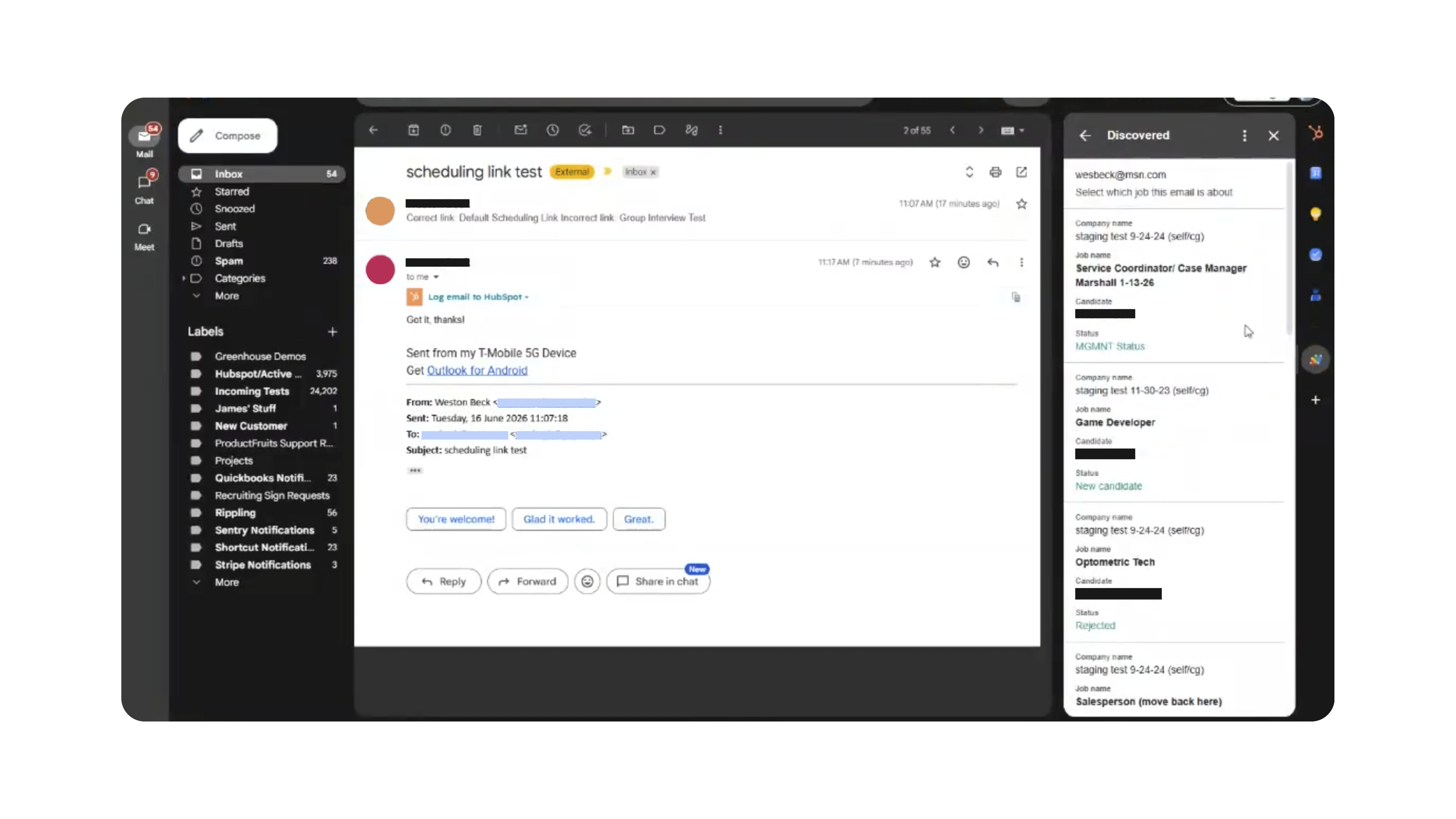
5. Select the correct job, if needed
If the candidate is associated with more than one job in Discovered, select the job that the email should be connected to.
This ensures the message appears in the correct candidate record and job context.
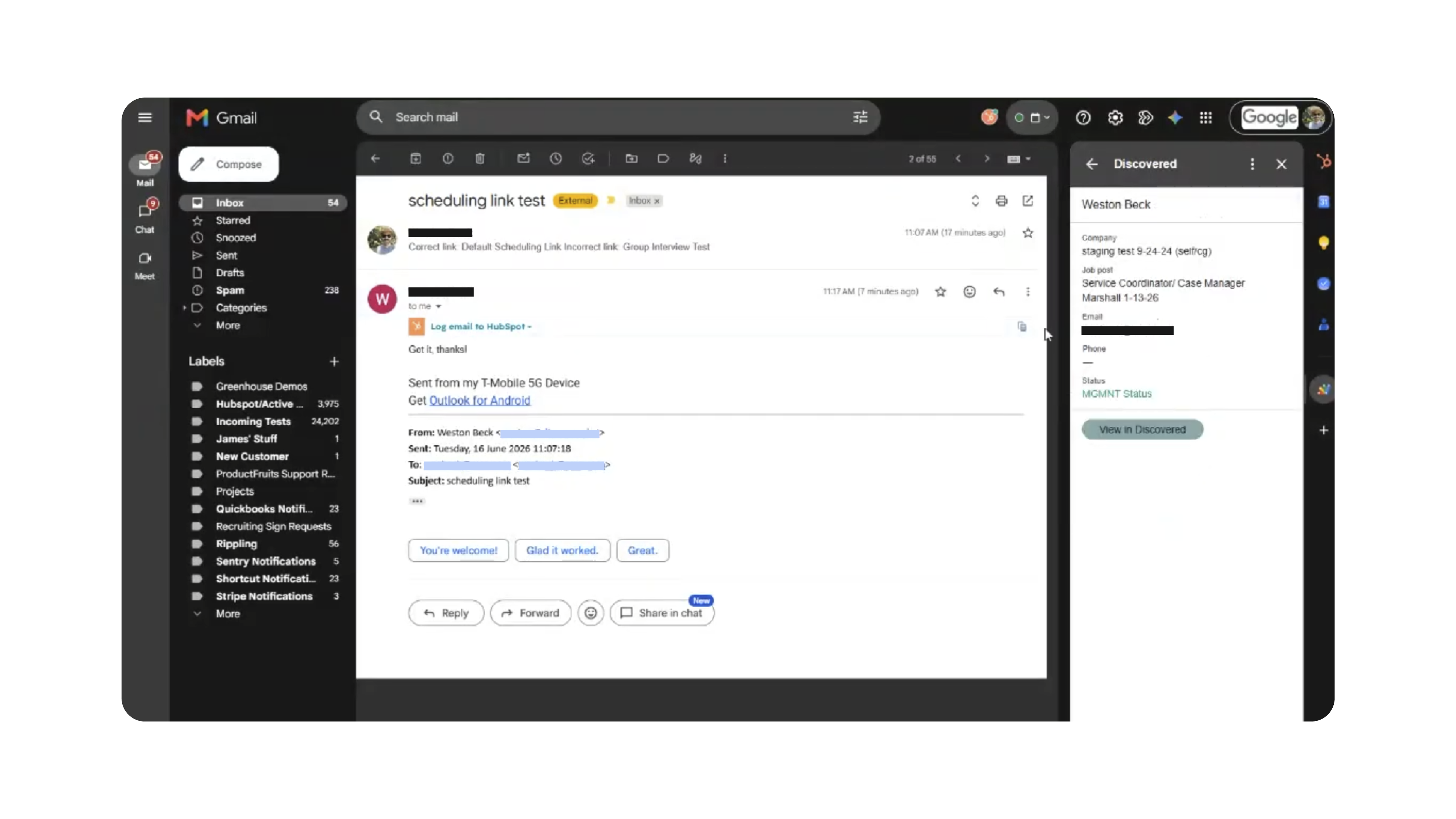
6. Sync the message
After confirming the candidate and job, sync the message.
Discovered will add the selected Gmail message to the candidate’s communication history.
7. Review the message in Discovered
Open the candidate profile in Discovered and review the communication history.
The synced Gmail message should appear in the selected candidate profile.
What Gets Synced
When you sync a Gmail message, Discovered adds the selected email to the matching candidate profile.
The synced message may include details such as:
- Sender
- Recipient
- Message content
- Timestamp
- Associated candidate profile
- Associated job, if selected
Only the message opened and synced through the add-on is added to Discovered.
Important Notes
- The add-on only syncs emails opened by the user while the Discovered add-on is active.
- The add-on does not automatically scan, read, or sync the full Gmail inbox.
- If a candidate is associated with multiple jobs, the user may need to select the correct job before syncing.
- If no matching candidate is found, the message may not sync to a candidate profile.
- Users should confirm the candidate and job before syncing the message.
- Do not sync unrelated, personal, or sensitive emails that do not belong in Discovered.
Why This Matters
Candidate conversations often happen across multiple systems. A candidate may apply through Discovered but reply directly to a recruiter’s Gmail inbox.
The Discovered Gmail add-on helps close that gap by allowing users to sync selected Gmail replies back into the candidate profile. This keeps communication history more complete, reduces manual data entry, and helps recruiting teams make decisions with better context.
Use Cases
Use the Discovered Gmail add-on when you need to:
- Save a candidate’s Gmail reply to their Discovered profile
- Keep candidate communication history up to date
- Sync applicant messages received outside the standard Discovered email flow
- Associate a Gmail message with the correct job
- Give recruiters and hiring managers better visibility into candidate communication
- Avoid manually copying and pasting email content into candidate notes
Best Practices
- Open the correct applicant email before launching the add-on.
- Confirm the candidate match before syncing the message.
- Select the correct job if the candidate appears in more than one job.
- Review the candidate profile after syncing to confirm the message was added.
- Avoid syncing unrelated or personal emails.
- Do not share screenshots that show private tokens, account settings, personal emails, or sensitive candidate information.
- Use the add-on when the message should be part of the candidate’s official communication history.
What Happens Next
After the message is synced, it appears in the candidate’s communication history in Discovered.
Recruiters and hiring team members can then review the synced email from the candidate profile, helping keep applicant communication organized in one place.